Shortcodes
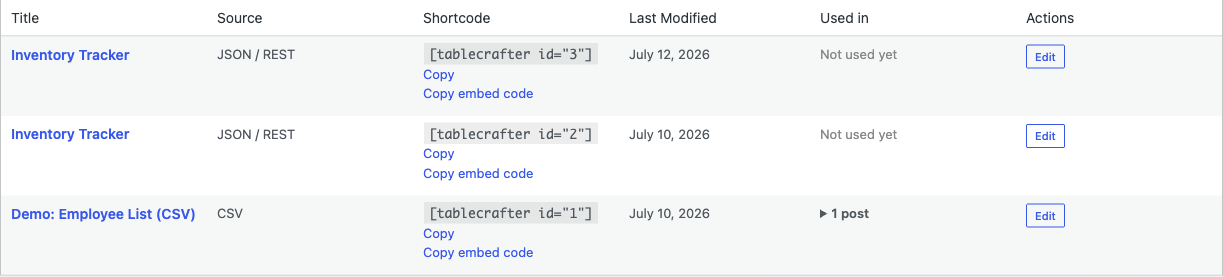
TableCrafter registers a single, universal shortcode, [tablecrafter], that turns any JSON API, Google Sheet, or CSV URL into a server-rendered, accessible table. It works in posts, pages, widgets, and template files on any theme back to WordPress 3.0.
The shortcode tag
TableCrafter registers exactly one shortcode tag. There are no aliases or secondary tags. Internally it is wired up during plugin initialization with add_shortcode('tablecrafter', ...), which maps the tag to the plugin's render handler. The same handler powers the Gutenberg block, so a block and a shortcode produce identical markup.
# The only registered shortcode
[tablecrafter source="https://api.example.com/data.json"]
The source attribute is the only one you strictly need. Everything else is optional and falls back to a sensible default. When source is empty, the shortcode renders a friendly placeholder instead of an error, which is useful while you are still editing.
The table is rendered server-side (SSR) into real HTML, then progressively enhanced with JavaScript for search, sorting, and pagination. This means search engines and users without JavaScript still see the full data.
Quick start
- Edit any post, page, or widget area.
- Paste the shortcode with your data URL:
[tablecrafter source="https://api.example.com/data.json"] - Publish or preview. TableCrafter fetches the source, builds the table, and caches the result.
The first render is synchronous (it fetches and builds the HTML on the spot). Subsequent loads are served instantly from a cached copy using Stale-While-Revalidate (SWR) caching, so visitors never wait on a slow third-party API.
Attribute reference
All attributes below are passed directly on the shortcode. Boolean attributes accept true, 1, or yes for on; anything else is treated as off.
Core attributes
| Attribute | Required | Default | Description |
|---|---|---|---|
| source | Required | (empty) | URL to your JSON API, CSV file, or public Google Sheet. The URL is sanitized before use. |
| id | Optional | auto tc-… | The container element ID. If omitted, a unique ID is generated automatically. |
| root | Optional | (empty) | Dot-path to the data array inside a nested JSON response, e.g. root="data.results". |
| include | Optional | (empty) | Comma-separated list of keys to show. Builds a curated column set from a heavy API. |
| exclude | Optional | (empty) | Comma-separated list of keys to hide. |
| per_page | Optional | 0 | Rows per page. 0 shows all rows without pagination. |
| sort | Optional | (empty) | Initial sort in column:direction format, e.g. sort="price:desc". |
Feature toggles
| Attribute | Required | Default | Description |
|---|---|---|---|
| search | Optional | false | Show the live global search bar above the table. |
| filters | Optional | true | Show per-column filters. Set to false to remove them. |
| export | Optional | false | Enable the export tools (CSV, clipboard, and the genuine XLSX/PDF exports added in 3.5.x). |
| error_message | Optional | (default text) | Custom message shown to visitors when the data source cannot be loaded. |
Auto-refresh attributes
| Attribute | Required | Default | Description |
|---|---|---|---|
| auto_refresh | Optional | false | Re-fetch the source on an interval for live dashboards. |
| refresh_interval | Optional | 300000 | Refresh interval in milliseconds (default = 5 minutes). |
| refresh_indicator | Optional | true | Show the visual refresh controls. |
| refresh_countdown | Optional | false | Display a countdown to the next refresh. |
| refresh_last_updated | Optional | true | Show an "Updated X minutes ago" timestamp. |
Note the defaults: filters is on, but search and export are off. Add search="true" and export="true" explicitly if you want them.
Placing the shortcode in posts and pages
In the block editor, add a Shortcode block (or a Classic/Paragraph block in legacy editors) and paste the tag. In the Classic Editor, paste it directly into the content area. TableCrafter detects the source and renders the table where the shortcode sits.
# A searchable, paginated table
[tablecrafter source="https://api.example.com/products.json" search="true" per_page="10"]If you use the modern editor, the native TableCrafter Gutenberg block gives you the same output with a visual interface. The shortcode is the best fit for classic themes, custom HTML, and template work.
Placing the shortcode in widgets
WordPress runs shortcodes inside text and HTML widgets, so the same tag works in a sidebar or footer widget area:
- Go to Appearance → Widgets (or the Customizer).
- Add a Shortcode or Custom HTML widget to your widget area.
- Paste
[tablecrafter source="…"]and save.
A handful of older themes disable shortcode processing in widgets. If your table shows up as raw text, your theme is not calling do_shortcode() on widget content. The PHP method below is a reliable workaround.
Using the shortcode in theme templates (PHP)
To drop a table into a template file (header, footer, custom page template, or a hook), wrap the shortcode in do_shortcode() and echo the result:
echo do_shortcode( '[tablecrafter source="https://api.example.com/data.json" search="true"]' );This is the recommended approach for child themes and page builders that bypass normal content filtering. Because the output is just standard HTML with .tc- CSS classes, you can style it freely from your theme stylesheet.
Worked examples
Nested JSON with a root path
[tablecrafter source="https://api.example.com/v2/feed.json" root="items.list"]Curated columns from a heavy API
[tablecrafter source="https://api.example.com/coins.json" include="name,price,symbol" sort="price:desc"]Public Google Sheet
The sheet must be shared as "Anyone with the link." Paste the standard sheet URL as the source:
[tablecrafter source="https://docs.google.com/spreadsheets/d/1BxiMVs0XRA5nFMdKvBdBZjgmUUqptlbs74OgvE2upms/edit"]Live auto-refreshing dashboard
[tablecrafter source="https://api.example.com/stocks.json" auto_refresh="true" refresh_interval="60000" refresh_countdown="true"]Generate shortcodes visually
You do not have to hand-write attributes. The plugin ships a visual builder so non-technical users can configure a table and copy a ready-made tag:
- Open the TableCrafter menu in the WordPress admin sidebar.
- Enter your JSON, CSV, or Google Sheet URL.
- Toggle options such as Search, Filters, and Export, then click Preview Table to verify the data loads.
- Copy the generated shortcode with one click and paste it wherever you need it.
How errors are handled
If a source fails to load, what visitors and editors see depends on their role:
- Administrators (users who can manage options) see a detailed error helper with the underlying message, so you can debug the source URL.
- Visitors see a clean, non-technical notice. Override its wording with the
error_messageattribute, e.g.error_message="Pricing data is briefly unavailable."
An empty source never errors; it renders a placeholder, which keeps drafts and templates clean while you finish configuring the table.
Next, see gutenberg-block.html for the visual block equivalent, or data-sources.html to learn how to point the source attribute at JSON, CSV, and Google Sheets.