Recipe: Event Schedule
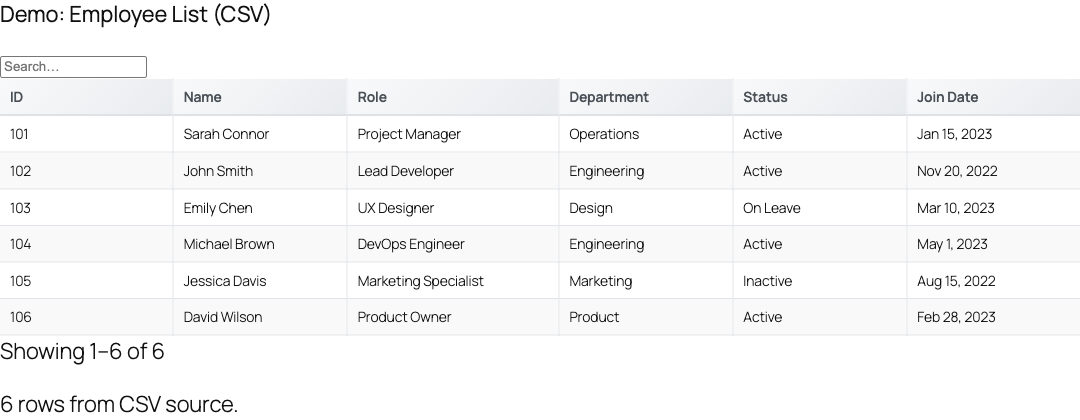
Turn a Google Sheet of sessions into a live, sortable, searchable event schedule on any WordPress page using a single [tablecrafter] shortcode. Edit the sheet and the page follows.
What you'll build
A schedule table fed directly from a published Google Sheet. Attendees can click any column header to sort, type in a search box to find a talk or speaker, narrow down by track or room with per-column filters, and download the schedule as CSV, XLSX, or PDF. Because the data lives in your sheet, updating a time or swapping a speaker is a sheet edit, not a content edit.
Every capability below maps to a real [tablecrafter] attribute. No custom code or template overrides are required.
TableCrafter renders the first table on the server for fast first paint, then hydrates it in the browser for interactivity. Search, header sorting, filters, and export all run client-side once the page loads.
Step 1 - Prepare the sheet
Structure your spreadsheet so row 1 holds column headers and each following row is one session. A workable layout:
| Time | Session | Speaker | Track | Room |
|---|---|---|---|---|
| 09:00 | Opening Keynote | A. Rivera | Main | Hall A |
| 10:30 | Scaling WordPress | J. Okafor | Dev | Room 2 |
| 10:30 | Content Ops 101 | M. Lindqvist | Content | Room 3 |
Then publish or share the sheet so it is publicly readable. TableCrafter detects any standard Google Sheets URL and rewrites it to the CSV export endpoint automatically, so you can paste the normal browser URL straight from the address bar.
The sheet must be readable without a login (use Share > Anyone with the link or File > Share > Publish to web). TableCrafter fetches the public CSV export; private sheets return an HTTP error. If your URL points at a specific tab, the gid is preserved during normalization.
Step 2 - Drop in the shortcode
Edit the page where the schedule should appear (Pages > your page) and add a Shortcode block, or paste the shortcode directly into a Classic/Code block. Start minimal, then layer features on:
<!-- Basic schedule from a Google Sheet -->
[tablecrafter source="https://docs.google.com/spreadsheets/d/1BxiMVs0XRA5nFMdKvBdBZjgmUUqptlbs74OgvE2upms/edit"]
Column headers are sortable by default. Next we enable search, lock the initial sort order, and turn on export.
Step 3 - The full worked example
This is the complete schedule shortcode using only real attributes:
[tablecrafter
  source="https://docs.google.com/spreadsheets/d/1BxiMVs0.../edit"
  include="Time,Session,Speaker:Presenter,Track,Room"
  search="true"
  filters="true"
  export="true"
  sort="Time:asc"
  per_page=25]
What each piece does:
- include picks the columns to show and fixes their left-to-right order. The
Speaker:Presenterform renames the Speaker column to Presenter in the header without touching the sheet. - search adds a global search box above the table that matches across every visible cell.
- filters renders per-column filter controls so attendees can narrow by Track or Room.
- export exposes CSV, XLSX, and PDF download controls.
- sort sets the initial order on the server, sorted by Time ascending.
- per_page paginates long agendas (any value above 0 turns pagination on).
Step 4 - Sorting behavior
The sort attribute uses column:direction format, where direction is asc or desc (the longer ascending/descending are also accepted). The column name must match a header in the sheet. On render, TableCrafter sorts the rows server-side with a numeric-aware, case-insensitive comparison, so 09:00 and 10:30 order correctly and text columns sort naturally.
Once the page is interactive, attendees re-sort by clicking any header. Each clickable header carries the tc-sortable class, is keyboard-focusable (tabindex="0", Enter or Space activates it), and exposes its state through aria-sort="ascending|descending|none" for screen readers. Clicking the same header again toggles the direction.
To sort newest-first or reverse-alphabetical by default, flip the direction: sort="Session:desc". If you omit sort, the table renders in sheet order and visitors can still sort by clicking.
Step 5 - Search and filters
With search="true", a debounced search input (tc-global-search, inside tc-global-search-container) appears above the table and filters rows live as the visitor types. With filters="true" (the default), per-column filter controls render in the tc-filters region for column-specific narrowing, such as showing only the Dev track or Hall A. When a search or filter excludes everything, TableCrafter shows a tc-no-results message instead of an empty table.
If you want a read-only board with no controls, set search="false" and filters="false".
Step 6 - Letting attendees export the schedule
Setting export="true" renders the export controls (tc-export-controls), including a one-click CSV button, a copy-to-clipboard action, and a format dropdown. TableCrafter's export handler (includes/class-tc-export-handler.php) supports three formats through a single pipeline:
| Format | Output |
|---|---|
| csv | Comma-separated values, text/csv |
| xlsx | Genuine Excel workbook (spreadsheet XML) |
| Real PDF document of the table |
The frontend label "Excel" maps to the canonical xlsx format key, so attendees get a real workbook rather than a renamed CSV.
Shortcode attribute reference
| Attribute | Default | Description |
|---|---|---|
| source | empty Required | Google Sheets URL (auto-converted to CSV), CSV file, or JSON API endpoint. |
| sort | empty Optional | Initial sort as column:direction, e.g. Time:asc. Column must match a header. |
| search | false Optional | Show the global search box. Set true for an attendee-searchable schedule. |
| filters | true Optional | Show per-column filter controls. Set false to hide them. |
| export | false Optional | Show CSV / XLSX / PDF export controls. |
| include | empty Optional | Comma list of columns to show and order. Supports key:Alias renaming. |
| exclude | empty Optional | Comma list of columns to hide. |
| root | empty Optional | For JSON sources, dot path to the array of rows (not needed for sheets). |
| per_page | 0 Optional | Rows per page. Any value above 0 enables pagination. |
| id | auto Optional | Container DOM id. Set a stable value to target it with CSS or JS. |
The auto_refresh, refresh_interval, refresh_indicator, refresh_countdown, and refresh_last_updated attributes also exist. They are aimed at live API feeds; a static event schedule generally does not need them, since TableCrafter already revalidates cached sheet data in the background after a few minutes.
Theming and hooking into the table
TableCrafter ships its own stylesheet, and the schedule is built from predictable, stable class names you can target from your theme CSS:
.tablecrafter-container- the outer wrapper (carries yourid)..tc-tableandth.tc-sortable- the table and its clickable headers..tc-global-search-container/.tc-global-search- the search row and input..tc-filters,.tc-pagination,.tc-export-controls- control regions..tc-no-results,.tc-loading,.tc-error-state- empty, loading, and error states.
For light scripting, the table fires native CustomEvents on its container that you can listen for, including tablecrafter:cardView and tablecrafter:cardEdit (and tablecrafter:cardTap on mobile card layouts). For example, to react when a visitor opens a session in the mobile card view:
const el = document.getElementById('schedule');
el.addEventListener('tablecrafter:cardView', (e) => {
  console.log('Viewed session:', e.detail.rowData);
});
Pair that with a fixed id="schedule" on the shortcode so your listener has a stable target.
Troubleshooting
- Table is empty or shows an error box. Confirm the sheet is publicly readable. Logged-in admins see a detailed error helper; visitors see a graceful message instead.
- A column won't sort the way you expect. The
sortcolumn name must exactly match a sheet header. After anincluderename, sort by the original sheet header, not the alias. - Edited the sheet but the page is stale. Rendered output is cached and revalidated in the background; allow a few minutes, or re-save the page to bust the cache.
- Too many columns on mobile. Trim the view with
includeto the essentials (Time, Session, Room) so the responsive layout stays readable.
Next, see shortcode-reference.html for the complete attribute list and data-sources-google-sheets.html for connecting and publishing sheets in detail.