Visual Shortcode Generator
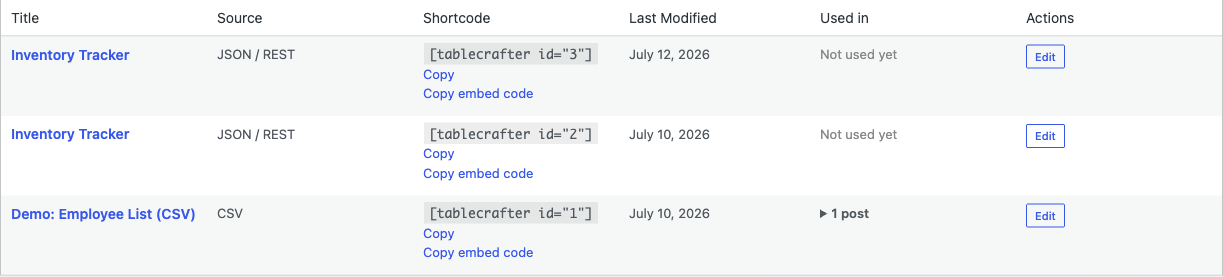
The Visual Shortcode Generator is a point-and-click builder in the TableCrafter admin dashboard that turns a data source and a handful of toggles into a ready-to-paste [tablecrafter] shortcode, with a live preview so you can confirm your table before publishing.
Why use the builder
Every TableCrafter table on the front end is powered by a single shortcode, [tablecrafter]. You can type that shortcode by hand, but the Visual Shortcode Generator removes the guesswork: you configure the source and options in a form, watch a real table render with your live data, and copy a correctly-formatted shortcode that you can drop into any post, page, or widget. Because it produces a plain shortcode, the result works with the Block editor, Classic editor, and any WordPress theme back to version 3.0.
The builder is purely an authoring aid. It writes the shortcode string for you; the front-end table is still rendered by the [tablecrafter] shortcode at page-load time. There is nothing stored in a database table.
Opening the builder
The generator lives on the main plugin screen:
- In the WordPress admin sidebar, click TableCrafter.
- The dashboard loads with a two-column layout: a configuration sidebar on the left and a Live Preview panel on the right.
The screen requires the manage_options capability, so it is available to administrators. The page is split into four cards in the sidebar, Quick Start Demos, Settings, and Usage, plus the preview area.
Step 1, Configure the data source
The Settings card is where you point TableCrafter at your data. You have several ways to set the source:
- Data Source URL, paste any public JSON API endpoint, remote CSV file URL, or public Google Sheet link directly into the field.
- Upload File (CSV/JSON), opens the WordPress Media Library so you can upload or select a CSV/JSON file; its URL is filled in for you.
- Google Sheets, prompts for a Sheet URL (the sheet must be shared as "Anyone with the link can view").
- Airtable, opens a modal to enter a Base ID, Table Name, optional View, and a Personal Access Token. The token is saved server-side and an
airtable://source reference is generated, so your credential never appears in the shortcode.
If you just want to explore, the Quick Start Demos card at the top of the sidebar offers one-click datasets (User Directory JSON, Product Inventory JSON, Sales Metrics JSON, Employee List CSV, a Google Sheet, and an Airtable base). Clicking one fills the source, resets the options to their defaults, and immediately renders a preview.
Use a Quick Start Demo first to see exactly how the form fields map onto the generated shortcode, then swap in your own URL.
Step 2, Configure columns and options
Below the source, the Settings card exposes the fields and toggles that map one-to-one onto shortcode attributes:
| Builder field | Maps to | What it does |
|---|---|---|
| Data Source URL | source | The JSON/CSV/Sheet/Airtable source. Required |
| Data Root (Optional) | root | Dot-path to the data array inside a nested JSON response, e.g. results.items. Optional |
| Rows Per Page | per_page | Number of rows shown per page. Defaults to 10 in the form. Optional |
| Include Columns | include | Comma-separated list of keys to show (a curated view). Optional |
| Exclude Columns | exclude | Comma-separated list of keys to hide. Optional |
| Enable Search | search | Toggles the live global search bar. Checked by default in the builder. Optional |
| Enable Filters | filters | Toggles auto-detected column filters. Checked by default. Optional |
| Enable Export | export | Toggles the CSV / Excel / PDF / clipboard export tools. Unchecked by default. Optional |
The generator only writes the root, per_page, include, and exclude attributes when you actually fill them in, keeping the shortcode tidy. per_page is also omitted when it is left at the default value of 10. The search, filters, and export booleans are always written explicitly (as "true" or "false") so there is never any ambiguity between the form and the front end.
Step 3, Preview the live table
Click Preview Table to render a real, interactive table with your data right inside the dashboard. The preview honors every setting you have configured, so what you see is what visitors will see: search, sorting, filters, pagination, and export all behave exactly as on the front end.
The Preview Table button uses a color cue to show whether the preview is in sync with your settings:
- Red, you have changed an input since the last preview ("dirty" state). Click to refresh.
- Green, the rendered preview matches your current configuration ("synced").
Editing a text field marks the preview as dirty, while flipping the Search, Filters, or Export checkboxes re-renders the preview automatically. If you leave the source empty and click Preview, the builder asks you to enter a valid URL first.
Step 4, Copy the generated shortcode
The Usage card shows the live-generated shortcode, which updates in real time as you change any field. When you are happy with the configuration, click Copy Shortcode. The button copies the string to your clipboard and briefly changes its label to Copied to Clipboard! as confirmation. It uses the modern Clipboard API where available and falls back gracefully on older or non-HTTPS setups.
Paste the result anywhere shortcodes run, a post or page, a Shortcode block, a text widget, or a template file.
# A fully-configured example produced by the builder
[tablecrafter source="https://api.example.com/products.json" root="data.items" per_page="25" include="name,price,stock" search="true" filters="true" export="false"]
A minimal table, just a source, with the default search/filters/export toggles, looks like this:
[tablecrafter source="https://api.example.com/data.json" search="true" filters="true" export="false"]Using the shortcode in templates
The copied shortcode also works in PHP template files via WordPress's do_shortcode() helper, which is handy for theme developers placing tables outside the editor:
echo do_shortcode('[tablecrafter source="https://api.example.com/data.json" search="true"]');Remote sources are fetched through TableCrafter's server-side proxy (with SSRF protection and caching), which bypasses browser CORS limits. Make sure your source returns a JSON array, valid CSV, or a publicly viewable Google Sheet, private endpoints or header-authenticated APIs are not supported by the free generator.
Next steps
Once you have a shortcode, learn the full attribute list and advanced options in shortcode-reference.html, or connect a live source the right way with data-sources.html.