Connect a JSON File or URL
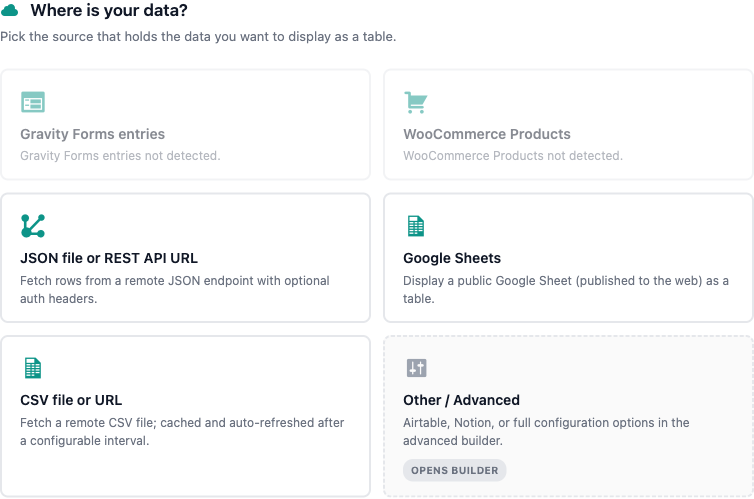
TableCrafter turns any public JSON file or API endpoint into an accessible, server-rendered WordPress table. Point the source attribute at your JSON, and use the root path to drill into nested arrays when your data is wrapped in an object.
What TableCrafter expects from JSON
A TableCrafter table is a list of rows, where each row is an object whose keys become the table columns. The simplest source is a top-level JSON array of objects:
[
  { "id": 1, "first_name": "John", "role": "Administrator" },
  { "id": 2, "first_name": "Jane", "role": "Editor" }
]
TableCrafter reads the keys of the first object to build the column headers, then renders one row per object. Most public REST APIs, however, wrap that array inside a parent object (for example { "data": [...] }). For those you use the root attribute, covered below.
The plugin fetches data directly from the source on every (revalidated) render and caches the result, so nothing is stored in your WordPress database. Tables are rendered server-side as proper HTML, keeping them fast and search-engine indexable.
The basic shortcode
Use the [tablecrafter] shortcode with a source pointing at your JSON file or API URL. This is the only required attribute.
[tablecrafter source="https://api.example.com/v1/users.json"]You can also reference a JSON file hosted on your own WordPress site, such as one in your uploads folder or bundled with a plugin:
[tablecrafter source="https://yoursite.com/wp-content/uploads/2026/users.json" search="true"]When the URL belongs to your own site, TableCrafter resolves it to the file on disk and reads it directly instead of making an HTTP round trip. Only .json and .csv files inside WordPress directories are eligible, and the resolved path is whitelisted against your install for safety.
Drilling into nested data with root
When your array is nested inside an object, give root the dot-notation path to it. TableCrafter splits the value on . and walks each key in turn until it reaches the array.
Given this response:
{
  "status": "ok",
  "data": {
    "results": [
      { "sku": "PRD-001", "price": 99.99 },
      { "sku": "PRD-002", "price": 249.50 }
    ]
  }
}
You reach the array of products with:
[tablecrafter source="https://api.example.com/products" root="data.results"]Each segment is one level deeper into the object. A single-level wrapper such as { "items": [...] } needs only root="items"; a two-level wrapper needs root="data.results", and so on.
The root path uses object keys only, it does not support array indexes. If any key in the path is missing, TableCrafter reports Path Error: Key 'segment' not found in data structure. Check the exact spelling and nesting of your JSON keys when you see this.
Finding the right path
The fastest way to discover the path is to open the raw JSON in your browser and trace from the outermost object down to the array of rows. Each object key you pass through becomes a segment in root. The visual builder under the TableCrafter admin menu also exposes a Data Root / Path field, enter your URL, set the path, and click Preview Table to confirm the data resolves before copying the generated shortcode.
Lists of simple values
If the array at your path contains plain strings or numbers rather than objects, for example ["Red", "Green", "Blue"], TableCrafter automatically wraps each entry into a single-column table under a Value column, so the data still renders cleanly without extra configuration.
Choosing and renaming columns
By default every key in the first row becomes a column. Use include and exclude to control which keys appear and in what order.
| Attribute | Required | Description |
|---|---|---|
| source | Required | URL of the JSON file or API endpoint (or a same-site JSON file). |
| root | Optional | Dot-notation path to the data array inside the response, e.g. data.results. |
| include | Optional | Comma-separated keys to show. Order is preserved. Supports aliasing (see below). |
| exclude | Optional | Comma-separated keys to hide. |
| search | Optional | Show the live search bar (true/false). |
| filters | Optional | Show per-column filters. Defaults to true. |
| per_page | Optional | Rows per page. 0 disables pagination. |
| sort | Optional | Initial sort in column:direction form, e.g. price:desc. |
| export | Optional | Enable CSV and clipboard export tools (true/false). |
To show only a few columns and give them friendly headers, use the key:Alias syntax inside include. The part before the colon is the JSON key; the part after is the label rendered in the header.
[tablecrafter source="https://api.example.com/products"
  root="data.results"
  include="sku:Product Code, price:Unit Price, rating:Stars"]
Columns appear in the order listed in include. Any key omitted from the list is hidden. The exclude attribute is the inverse, list keys to drop while keeping everything else.
TableCrafter only reads keys present in the first row to build columns. If your records have inconsistent shapes, put a fully populated record first or use include to pin the exact columns you want.
Remote fetching and security
Remote JSON is retrieved over HTTPS with SSL certificate verification enabled. Before any request leaves your server, the URL is screened by TableCrafter's SSRF protection, which blocks requests aimed at local or private IP ranges. A blocked address returns the error The provided URL is blocked for safety (Local/Private IP).
The source must return a valid JSON body with an HTTP 200 status. A non-200 response surfaces as Source returned HTTP <code>, and malformed JSON surfaces as The source did not return a valid JSON structure. These diagnostic messages are shown to administrators; visitors see a friendly fallback instead.
If your API blocks browser-side requests with CORS, that does not affect TableCrafter, the JSON is fetched server-side by WordPress, so cross-origin browser restrictions never come into play.
Caching and freshness
Fetched JSON and the rendered HTML are cached using a Stale-While-Revalidate strategy. The first render fetches and caches the data; subsequent visitors are served the cached table instantly, while a background refresh quietly updates the cache once it is older than five minutes. For sources that change frequently you can layer the auto_refresh attribute on top to poll and re-render on a fixed interval client-side.
[tablecrafter source="https://api.example.com/prices.json"
  root="data"
  auto_refresh="true"
  refresh_interval=60000]
Troubleshooting common JSON issues
| Message | Cause and fix |
|---|---|
| Path Error: Key '…' not found | A segment in root does not match the JSON. Re-check key names and nesting. |
| Structure Error: The target data is not a list/array | The value at your root path is an object, not an array. Point root at the array one level deeper. |
| Empty Dataset: No rows found at this path | The array resolved but is empty. Verify the API returned records and the path is correct. |
| The source did not return a valid JSON structure | The endpoint returned HTML or malformed JSON. Open the URL directly to inspect the raw response. |
Next steps
Once your JSON renders, fine-tune the experience with search, per_page, and sort. For tabular sources instead of JSON, see csv-files.html, or learn how live polling keeps data current in auto-refresh.html.