Migrating from Ninja Tables
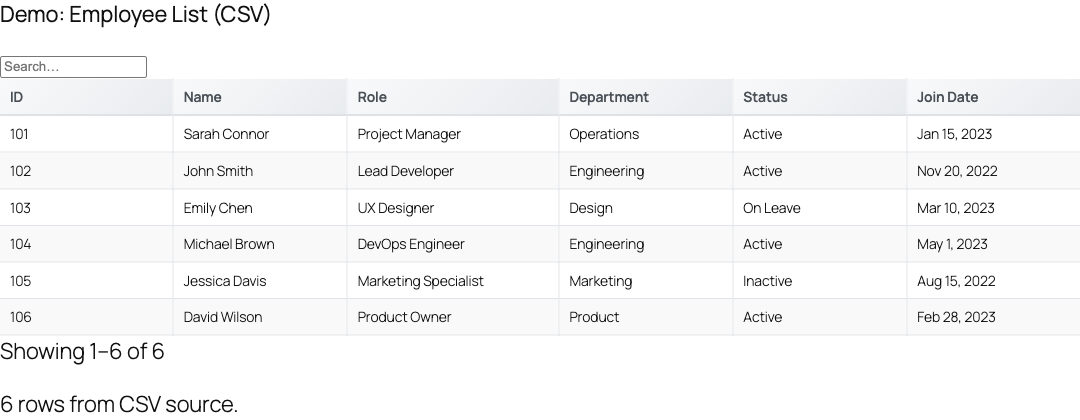
TableCrafter and Ninja Tables solve the same problem from opposite ends: Ninja Tables stores rows inside WordPress, while TableCrafter renders a live table from an external data source you point it at. This guide maps the concepts honestly and walks you through moving real tables across.
The fundamental difference (read this first)
Before you migrate anything, understand the architectural split, because it determines your entire workflow afterward:
- Ninja Tables is a data store. You type or import rows into a custom post type and embed them with
[ninja_tables id="123"]. The data lives in your WordPress database. - TableCrafter is a data renderer. You give the
[tablecrafter]shortcode asourceURL (a CSV, JSON, Google Sheet, or Airtable base) and it fetches, caches, and renders that data. Your source of truth stays where the data already lives.
There is no one-click "Import Ninja Table" button in TableCrafter 3.5.6, and this page will not pretend there is. Migration means choosing where your data should live, getting it into a format TableCrafter reads, and swapping the shortcode. The steps below make that concrete.
Concept mapping
This table maps each Ninja Tables idea to its closest real TableCrafter equivalent. Where there is no equivalent, the table says so.
| Ninja Tables concept | TableCrafter equivalent |
|---|---|
| Table stored in WP database | External source URL (CSV, JSON, Google Sheet, or airtable:// base) |
[ninja_tables id="123"] | [tablecrafter source="..."] shortcode, or the tablecrafter/data-table block |
| Numeric table ID | Optional id attribute (a DOM id; auto-generated if omitted) |
| Column visibility settings | include / exclude attributes (comma-separated field names) |
| Global search box | search="true" (renders the .tc-global-search-container) |
| Per-column filters | filters="true" (on by default; renders .tc-filters) |
| Default sorting | sort="column:direction", e.g. sort="price:desc" |
| Pagination / rows per page | per_page (a number; 0 shows all rows) |
| CSV / Excel / PDF export add-on | export="true" — genuine CSV, XLSX, and PDF built in |
| Inline / front-end editing add-on | Inline cell editing (per-column, permission-gated) via the JS config |
| Responsive "stacked" mobile view | Automatic card view (.tc-card) on small screens, no setting needed |
| Custom CSS per table | Stable CSS classes (.tc-table, .tablecrafter-container) to target |
| Google Sheets connector add-on | Native: paste any Google Sheet URL as source |
| Conditional formatting rules | No direct equivalent — style via CSS on rendered classes |
Honest comparison: what you gain and what you give up
Migrating is a trade, not a strict upgrade. Decide with eyes open.
What you gain
- Single source of truth. Edit a Google Sheet or Airtable base and every embedded table updates — no copy-paste back into WordPress.
- Export is core, not paid. CSV, real OOXML
.xlsx, and PDF ship in the box via the export handler. - Accessibility. TableCrafter targets WCAG 2.1 with keyboard navigation and screen-reader support out of the box.
- Caching built in. A stale-while-revalidate layer serves cached HTML instantly and refreshes in the background.
What you give up (be honest with yourself)
- The in-WordPress editor grid. If you love typing rows directly into the WP admin, that workflow moves to your spreadsheet or Airtable instead.
- Conditional formatting and per-cell styling UIs. You restyle with CSS, not a point-and-click rules panel.
- A migration importer. You will export your Ninja data once, by hand, as described below.
Step 1 — Decide where your data should live
Pick the source type that matches how the table is maintained. TableCrafter detects the type from the URL automatically:
| If the table is... | Best target source |
|---|---|
| Edited often by non-technical staff | Google Sheet (paste the sheet URL) |
| Structured records with relations | Airtable (airtable://baseId/tableName) |
| Static / rarely changes | A .csv or .json file uploaded to your Media Library |
| Produced by another app/API | A remote JSON endpoint URL |
Step 2 — Export your Ninja Table
In WordPress admin, open Ninja Tables → All Tables, choose your table, and use its export to download the rows as CSV. CSV is the lowest-friction bridge because every TableCrafter source path accepts it. Then:
- Google Sheet route: create a new sheet and use File → Import to load the CSV, then copy the sheet URL.
- Media Library route: in WordPress go to Media → Add New and upload the
.csvfile, then copy its file URL. - Airtable route: import the CSV into a base, then note the base id and table name.
For Google Sheets you can paste the normal editing URL — TableCrafter rewrites it to the sheet's CSV export endpoint internally and preserves the gid of the specific tab. Make sure the sheet is shared as "Anyone with the link can view."
Step 3 — Swap the shortcode
Find the page using [ninja_tables id="123"] and replace it with a [tablecrafter] shortcode pointed at your new source. A plain Google Sheet swap looks like this:
// Before (Ninja Tables)
[ninja_tables id="123"]

// After (TableCrafter, Google Sheet source)
[tablecrafter source="https://docs.google.com/spreadsheets/d/1AbC.../edit#gid=0"]
A CSV uploaded to the Media Library, with the same search/filter/export behavior a typical Ninja Table had:
[tablecrafter
  source="https://example.com/wp-content/uploads/2026/06/products.csv"
  search="true"
  filters="true"
  export="true"
  per_page=25
  sort="price:desc"]
An Airtable base, restricting and reordering columns the way Ninja's column visibility did:
[tablecrafter
  source="airtable://appXXXXXXXX/Inventory"
  include="name,sku,price,stock"
  export="true"]
Prefer the block editor? Add the tablecrafter/data-table block and fill in the same fields in the sidebar — source, include, exclude, search, filters, per_page, and export — instead of writing the shortcode by hand.
Shortcode attribute reference
These are the real attributes accepted by [tablecrafter] (and the block) in 3.5.6. Booleans accept true/false, yes, or 1/0.
| Attribute | Required | Purpose |
|---|---|---|
| source | Required | URL of the data: CSV/JSON file, Google Sheet URL, remote JSON, or airtable://baseId/tableName |
| include | Optional | Comma-separated field names to show (whitelist) |
| exclude | Optional | Comma-separated field names to hide |
| root | Optional | Key path to the array inside a nested JSON response |
| search | Optional | Global search box. Default false |
| filters | Optional | Per-column filters. Default true |
| export | Optional | CSV / XLSX / PDF export controls. Default false |
| per_page | Optional | Rows per page. 0 = show all. Default 0 |
| sort | Optional | Initial sort as column:direction, e.g. name:asc |
| id | Optional | DOM id for the container. Auto-generated if omitted |
| auto_refresh | Optional | Re-poll the source on an interval. Default false |
| refresh_interval | Optional | Refresh interval in milliseconds. Default 300000 (5 min) |
| refresh_indicator | Optional | Show the refreshing indicator. Default true |
| refresh_countdown | Optional | Show a countdown to next refresh. Default false |
| refresh_last_updated | Optional | Show "last updated" timestamp. Default true |
Step 4 — Recreate styling and behavior
Ninja's per-table style panel maps to plain CSS against TableCrafter's stable class names. The rendered markup gives you reliable hooks:
| Class / selector | What it targets |
|---|---|
| .tablecrafter-container | The outer wrapper for the whole table instance |
| .tc-table | The <table> element itself (desktop view) |
| .tc-sortable | Sortable header cells |
| .tc-global-search-container | The search box wrapper |
| .tc-filters | The per-column filter row |
| .tc-export-controls | The export button group |
| .tc-pagination | The pager controls |
| .tc-card | A single record in the mobile card view |
| .tc-editable | A cell wired for inline editing |
/* Example: restyle the migrated table to match your theme */
.tc-table {
  border-collapse: collapse;
  width: 100%;
}
.tc-table th.tc-sortable {
  cursor: pointer;
  background: #0f766e;
  color: #fff;
}
For card-view interactions on mobile, TableCrafter dispatches real DOM CustomEvents you can listen to instead of any Ninja-specific JS hooks: tablecrafter:cardTap, tablecrafter:cardView, and tablecrafter:cardEdit. They bubble from the container, so you can bind one listener per table.
Server-side, two real filters are available for tailoring behavior: tc_export_templates (export presets in the export handler) and tablecrafter_trusted_ip_headers (security/proxy header handling).
Step 5 — Verify, then retire Ninja Tables
- Open the migrated page and confirm rows, columns, search, filters, sort, and export all behave. Admins see an on-page error helper if the
sourceis unreachable. - From TableCrafter in the admin menu (and its Welcome screen), use the built-in shortcode generator and live preview to fine-tune attributes before publishing.
- Once every embed is swapped and verified, deactivate Ninja Tables. Keep your CSV export as a one-time backup of the original rows.
Migrate one high-traffic table first, confirm it end-to-end, then batch the rest. Because the data now lives in a sheet or file, future edits never touch WordPress again.
Next, see data-sources.html to fine-tune CSV, Google Sheets, JSON, and Airtable connections, and exporting-data.html to set up the CSV, XLSX, and PDF export your old Ninja add-on used to provide.