Recipe: Live API Status Dashboard
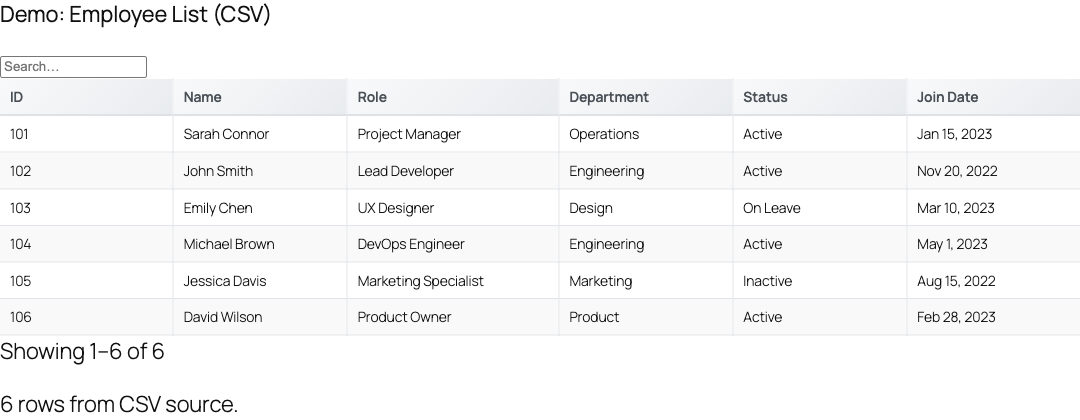
Turn any JSON status endpoint into a self-updating WordPress dashboard. This recipe wires a single [tablecrafter] shortcode to TableCrafter's Smart Auto-Refresh engine so your table re-fetches on an interval, pauses politely while people read, and shows a live "updated X ago" indicator.
What you'll build
A status dashboard page showing the health of your services (component name, status, latency, last incident) that refreshes itself every 30 seconds without a page reload. The table preserves the visitor's current page, search, filters, and sort across each refresh, pauses while the tab is hidden or while someone is actively interacting, and exposes a small control bar to pause/resume or refresh on demand.
Everything here uses only real, shipped attributes from TableCrafter v3.5.6. No custom code is required, though we cover optional CSS theming at the end.
Prerequisites
- TableCrafter (wp-data-tables) v3.5.6 active on your site.
- A JSON endpoint that returns an array of rows (or an object containing one). Same-origin endpoints are fetched directly in the browser; cross-origin endpoints are routed through TableCrafter's server-side proxy automatically.
- A page or post where you can paste a shortcode (or a Gutenberg "TableCrafter Data Table" block / Elementor "TableCrafter Data Table" widget, all three render the same engine).
For cross-origin APIs, the browser request is proxied through the WordPress tc_proxy_fetch AJAX action. That proxy requires the user to have at least edit_posts capability and applies SSRF protection plus rate limiting (30 requests / 60 seconds). Public, same-origin JSON files are fetched directly with no proxy and no capability check.
Step 1, Inspect your API response shape
TableCrafter auto-discovers columns from the keys of the first row, so the shape of the response matters. The two common shapes:
A flat array, works with no extra attributes:
// GET https://status.example.com/api/components.json
[
  { "component": "API Gateway", "status": "operational", "latency_ms": 87 },
  { "component": "Database",    "status": "degraded",    "latency_ms": 412 }
]
A nested object, point at the array with the root attribute using dot notation:
// GET https://status.example.com/api/v1/summary.json
{
  "page": { "name": "Example Status" },
  "data": {
    "components": [
      { "component": "API Gateway", "status": "operational" }
    ]
  }
}
// reach the array with: root="data.components"
Step 2, Add the dashboard shortcode
Create a new page (Pages → Add New), add a Shortcode block, and paste the example below. This is the core recipe, a 30-second live dashboard with a countdown timer:
[tablecrafter source="https://status.example.com/api/components.json"
  root="data.components"
  include="component,status,latency_ms,updated_at"
  search="true"
  filters="true"
  per_page="25"
  auto_refresh="true"
  refresh_interval="30000"
  refresh_countdown="true"
  refresh_last_updated="true"]
Publish, then view the page. On first load the server renders the table (Stale-While-Revalidate), then the frontend script hydrates it and starts the refresh loop. You should see a control bar reading "Auto-refresh active" with a live countdown and an "Updated just now" timestamp.
refresh_interval is in milliseconds, not seconds. 30000 = 30 seconds, 60000 = 1 minute. The shortcode default when auto_refresh="true" but no interval is given is 300000 (5 minutes).
Step 3, Curate the columns
Status APIs are often verbose. Trim the table to the columns that matter with include (a comma-separated allow-list) or exclude (a comma-separated hide-list). Column order follows the order of the keys discovered in the first row.
// Show only these four columns, in this priority
[tablecrafter source="..." include="component,status,latency_ms,updated_at"]

// Or keep everything except internal IDs
[tablecrafter source="..." exclude="internal_id,region_code"]
Add sort in column:direction format to land visitors on the most urgent rows first, for example sort="status:asc" or sort="latency_ms:desc".
Shortcode attribute reference
These are the attributes relevant to a live dashboard. Booleans accept true/false (also 1/yes).
| Attribute | Required? | Default | Purpose |
|---|---|---|---|
| source | Required | - | URL of the JSON API, CSV, or public Google Sheet to load. |
| root | Optional | (empty) | Dot-notation path to the data array inside a nested response, e.g. data.components. |
| include | Optional | (all keys) | Comma-separated allow-list of columns to display. |
| exclude | Optional | (none) | Comma-separated list of columns to hide. |
| search | Optional | false | Show the live search box. |
| filters | Optional | true | Show auto-detected per-column filters. |
| per_page | Optional | 0 (all) | Rows per page; enables pagination when > 0. |
| sort | Optional | (none) | Initial sort as column:direction, e.g. latency_ms:desc. |
| auto_refresh | Required | false | Set true to enable the Smart Auto-Refresh loop. This is the switch that makes the dashboard "live." |
| refresh_interval | Optional | 300000 | Refresh cadence in milliseconds. |
| refresh_indicator | Optional | true | Render the control bar (status text, pause/resume, refresh-now). |
| refresh_countdown | Optional | false | Show a "Next: 0m 29s" countdown to the next refresh. |
| refresh_last_updated | Optional | true | Show an "Updated X ago" timestamp. |
Auto-refresh only runs when there is a data URL to re-fetch (a source). Inline data has nothing to poll. If auto_refresh is on but no URL resolves, the engine logs a warning and skips the loop rather than erroring.
How Smart Auto-Refresh behaves
Once auto_refresh="true", the TableCrafter instance starts a setInterval loop at your interval. Each tick calls performRefresh(), which:
- Snapshots the visitor's current page, filters, search term, and sort.
- Re-fetches the source (through the proxy for cross-origin URLs, with a 1-hour server transient cache on the proxy result).
- Re-renders the table and restores that snapshot, so a refresh never yanks a reader back to page 1 or clears their filter.
- Updates the "last updated" timestamp and resets the countdown.
Two "smart" guards keep it unobtrusive, both on by default:
- Pause on interaction: hovering, clicking, scrolling, moving the mouse, or typing inside the table pauses refreshing. It resumes automatically after 5 seconds of inactivity. This prevents the table re-rendering out from under someone mid-read.
- Pause on tab visibility: the loop pauses when the browser tab is hidden (via the
visibilitychangeevent) and resumes when the tab is focused again, saving requests and battery.
If a refresh fails, the engine retries with exponential backoff (2s, 4s, 8s) up to 3 attempts. After the final failure it stops the loop to avoid hammering a down endpoint.
The control bar and its CSS hooks
When refresh_indicator is enabled, TableCrafter injects a control bar at the top of the container. These are the real class names you can target for theming:
| Element / class | What it is |
|---|---|
| .tc-refresh-indicator | The control-bar wrapper. Gets a .paused class while paused. |
| .tc-refresh-status | The left-hand status group (icon + text + optional countdown/timestamp). |
| .tc-refresh-icon | The spinning 🔄 glyph (animated by the tc-spin keyframe; animation stops when paused). |
| .tc-refresh-text | Reads "Auto-refresh active" or "Auto-refresh paused". |
| .tc-countdown | "Next: …" countdown, shown only when refresh_countdown="true". |
| .tc-last-updated | "Updated X ago" timestamp, shown when refresh_last_updated="true". |
| .tc-refresh-toggle | The ⏸️ / ▶️ pause-resume button. |
| .tc-refresh-manual | The ↻ "Refresh now" button, forces an immediate refresh and resets the interval. |
The plugin injects baseline styles for these once, under a <style id="tc-refresh-styles"> tag. To restyle the bar (for example to match a dark dashboard), add your own CSS with higher specificity:
.tc-refresh-indicator {
  background: #0f172a;
  border-color: #1e293b;
  color: #e2e8f0;
}
.tc-refresh-indicator .tc-countdown { color: #38bdf8; }
Color-coding status values
TableCrafter renders cell values as text, so there is no built-in "status pill." The accurate way to color-code is plain CSS targeting the rendered cells. Because the table is re-rendered on every refresh, attribute-based selectors keep working after each update. A robust approach is to drive color from your data itself, return a CSS-friendly value and style by content using a small wrapper, or scope styles to the table cells:
/* Scope to your dashboard page/container, then style status text */
.tablecrafter-container td { font-variant-numeric: tabular-nums; }
/* Pair with a 'status' column whose values are operational/degraded/down */
.tablecrafter-container td:nth-child(2) { font-weight: 600; }The most maintainable pattern is to have your API include a numeric latency_ms and a normalized status string. TableCrafter's auto-detected filters will then offer a status dropdown and a latency range automatically, no configuration needed.
Tuning the refresh cadence
| Scenario | Suggested interval | Recommended flags |
|---|---|---|
| NOC wall display, fast-moving metrics | refresh_interval="15000" (15s) | refresh_countdown="true" |
| Public status page | refresh_interval="60000" (1m) | refresh_last_updated="true" |
| Cross-origin API (rate-limited proxy) | refresh_interval="60000" or higher | keep default smart pausing on |
For cross-origin sources, remember the proxy enforces 30 requests per 60 seconds per user and caches each URL's response for an hour. A 15-second interval against a remote API will hit the cache, not your origin, between cache expiries, fine for status pages, but don't expect sub-cache real-time freshness from a remote source without lowering the cache window. Same-origin JSON files bypass the proxy and refresh at the literal interval.
Manual control and instances
Each rendered table is a TableCrafter instance bound to its .tablecrafter-container. The visible ⏸️ and ↻ buttons map to toggleAutoRefresh() and refreshNow(). Visitors can pause a noisy dashboard themselves; the bar text and icon update to reflect the paused state. If you hide the bar with refresh_indicator="false", the loop still runs silently with the same smart pausing, useful for an unattended kiosk where you don't want controls on screen.
Troubleshooting
- Empty table. Your array is probably nested, set
rootto the dot path (the console logs a "Path segment not found" warning when the path is wrong). - "Unable to load data." For cross-origin URLs, confirm the logged-in user can
edit_posts(the proxy gate) and that the endpoint isn't a private/localhost address blocked by SSRF protection. - Table never refreshes. Check that both
auto_refresh="true"and a realsourceURL are present; inline-only data cannot poll. - Refreshes feel slow on a remote API. That's the 1-hour proxy cache. Lower it or move the feed same-origin for literal-interval freshness.
Next, see data-sources.html to connect JSON, CSV, and Google Sheets sources (and configure nested root paths), and shortcode-reference.html for the full attribute list including export and pagination options.