Migrating from TablePress
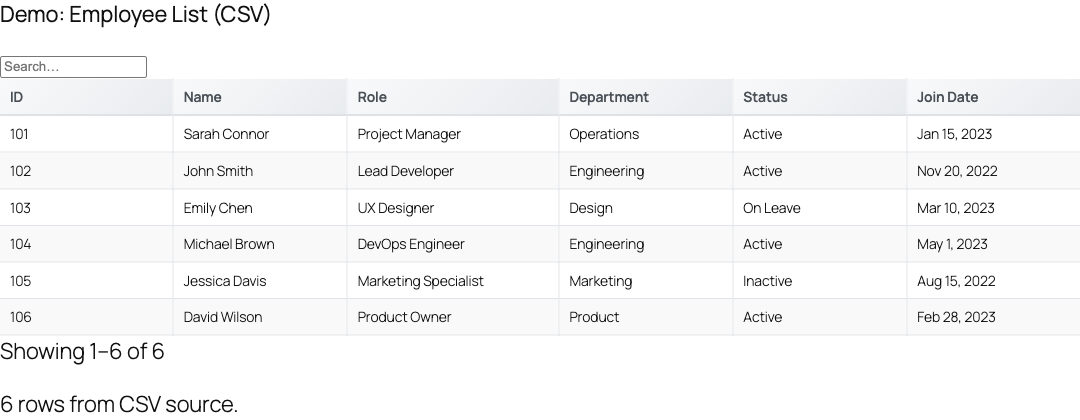
TablePress stores static tables inside your WordPress database; TableCrafter renders live tables from an external source URL such as Google Sheets, a CSV file, or a JSON API. This guide walks through moving your TablePress content to a live source and gives an honest, side-by-side comparison so you can decide what actually belongs in TableCrafter.
Read this first: the two plugins are not the same shape
TableCrafter is not a drop-in replacement for TablePress, and pretending otherwise will waste your afternoon. The core architectural difference drives every step below:
- TablePress is a table editor. Your data lives in the WordPress database (post type
tablepress_table), you edit cells in wp-admin, and you embed with[table id=5 /]. - TableCrafter is a data renderer. It holds no table data of its own. The
[tablecrafter]shortcode points at asourceURL and fetches the rows at render time, then caches the result. There is no built-in spreadsheet grid for typing in cells.
TableCrafter has no native "Import from TablePress" button. Migration is a manual, one-time move: get your table out of TablePress as a file or sheet, host it somewhere fetchable, and repoint the shortcode. The rest of this page makes that concrete.
Decide which tables should move
Because the data model differs, migrate by intent rather than migrating everything blindly:
| Your TablePress table is... | Move to TableCrafter? | Why |
|---|---|---|
| Fed from a spreadsheet you keep updating by hand | Strong yes | Point TableCrafter at the live Google Sheet and edits appear on the site automatically. |
| Generated by another system (CRM, inventory, an API) | Strong yes | Use a JSON endpoint as the source; turn on auto_refresh for near-live updates. |
| A small, static table edited once a year | Optional | Works fine as a hosted CSV, but you lose TablePress's in-admin cell editor. The convenience trade-off may not be worth it. |
| Full of merged cells, per-cell colors, or formulas | No / partial | TableCrafter renders flat rows-and-columns. Rich per-cell formatting and TablePress formulas do not carry over. |
Step 1, Export your data out of TablePress
Open wp-admin → TablePress → Export Tables. Select the table(s) and export. Two formats matter for this migration:
- CSV, the simplest target. TableCrafter parses CSV natively, treating row 1 as the column headers.
- JSON, useful if you want a structured object you will host on an API or keep nested under a key.
If you'd rather keep editing the data going forward, paste the exported rows into a new Google Sheet instead of saving a flat file. That choice is what unlocks "edit the sheet, the site updates" later.
TableCrafter's CSV parser uses the first row as headers and skips any row whose column count doesn't match the header count. Before you publish, make sure your export has one clean header row and no stray summary rows at the bottom.
Step 2, Host the data at a fetchable URL
TableCrafter needs a URL it can read over HTTP. Pick whichever source fits how the data changes:
| Source type | What to provide as source | Notes |
|---|---|---|
| Google Sheets | The normal sheet share URL, e.g. https://docs.google.com/spreadsheets/d/<ID>/edit#gid=0 | TableCrafter auto-rewrites this to the CSV export endpoint and preserves the gid tab. The sheet must be link-viewable. |
| CSV file | A direct URL ending in .csv (uploaded to Media Library or any host) | Detected by the .csv extension. |
| JSON API or file | Any URL returning a JSON array, e.g. https://api.example.com/products.json | Use root if the rows live under a nested key (see Step 3). |
| Airtable | airtable://baseId/tableName | Token read from the saved tablecrafter_airtable_token option or passed on the URL. |
A Google Sheet or CSV used as a source is fetched publicly. Do not migrate tables that contain private or sensitive data to a link-shared sheet. For anything gated, host it as a JSON endpoint behind your own access control.
Step 3, Swap the shortcode
This is the actual cutover. Find every TablePress embed and replace it with a TableCrafter shortcode that points at your new source.
Before (TablePress):
[table id=5 /]After (TableCrafter), Google Sheet source with search and pagination):
[tablecrafter source="https://docs.google.com/spreadsheets/d/1BxiMVs0XRA5nFMdKvBdBZjgmUUqptlbs74OgvE2upms/edit#gid=0" search="true" per_page="25"]TablePress's DataTables features (search box, sorting, pagination) map onto TableCrafter attributes, so most tables keep their behavior:
| Attribute | Req? | TablePress equivalent / purpose |
|---|---|---|
| source | Required | The data URL. Replaces TablePress's stored table; no id to look up. |
| search | Optional | Live search box (TablePress "Enable Visitor Features → Search/Filter"). Default off. |
| filters | Optional | Auto-detected column filter dropdowns. Default on. |
| per_page | Optional | Client-side pagination size (TablePress "Pagination"). 0 shows all rows. |
| sort | Optional | Initial sort as column:direction, e.g. price:desc. |
| include | Optional | Comma-separated columns to keep (TablePress "Hide columns", inverted). |
| exclude | Optional | Comma-separated columns to drop. |
| root | Optional | Dot-path to the row array inside a JSON response, e.g. data.items. |
| export | Optional | Adds an export button (CSV / genuine XLSX / PDF). Default off. |
| auto_refresh | Optional | Re-fetches the source on an interval. No TablePress equivalent. |
If you embed via the editor instead of raw shortcode, add the native TableCrafter block (tablecrafter/data-table) and fill in the same fields in the block sidebar, or use the Elementor "TableCrafter Data Table" widget.
Step 4, Recover the live-update advantage you came for
This is the payoff that TablePress can't match. With a Google Sheet or JSON source, editing the data no longer means logging into wp-admin. For data that changes on its own (prices, scores, inventory), turn on auto-refresh so the front end re-fetches without a page reload:
[tablecrafter source="https://api.example.com/stocks.json"
  auto_refresh="true" refresh_interval="60000"
  refresh_indicator="true" refresh_last_updated="true"]
refresh_interval is in milliseconds (default 300000, five minutes). Server-side, TableCrafter also caches each render and revalidates stale entries in the background (stale-while-revalidate), so first paint stays fast even on a slow source.
Honest comparison: what you gain and what you lose
Migrating is a trade, not a pure upgrade. Go in clear-eyed.
| Capability | TablePress | TableCrafter 3.5.6 |
|---|---|---|
| Where data lives | WordPress database | External source URL (zero DB rows stored) |
| In-admin cell editor | Yes, full spreadsheet grid | No; you edit the source (sheet/API/file) |
| Live / auto-updating data | No (manual re-edit) | Yes (auto_refresh + SWR cache) |
| Per-cell colors, merged cells, formulas | Yes | No; flat rows and columns only |
| Search / sort / pagination | Yes (DataTables, often paid extension) | Yes, built in (search, sort, per_page) |
| Mobile card layout | Horizontal scroll | Auto card view with touch gestures below 768px |
| Export | Manual export in admin | Front-end export to CSV, real XLSX, and PDF (export="true") |
| Smart-typed cells (email, URL, image, boolean) | Manual | Auto-rendered as tc-link, badges, thumbnails |
The most common migration regret is the lost in-admin editor. If a non-technical client currently edits a TablePress table directly, replace that workflow with a shared Google Sheet before you switch, or you'll just be moving their editing pain, not removing it.
Styling and behavior parity
You don't get TablePress's per-table custom CSS box, but TableCrafter exposes stable hooks for theming and scripting:
- CSS classes, every table is a
.tablecrafter-containerwrapping a.tc-table; links render as.tc-linkand yes/no values as.tc-badge. Target these in your theme stylesheet. - CSS variables, the accessibility/contrast layer reads custom properties including
--tc-border-color,--tc-text-color,--tc-bg-color, and--tc-focus-color, so you can retheme without editing plugin files. - JS events, mobile card interactions dispatch bubbling
CustomEvents on the container:tablecrafter:cardTap,tablecrafter:cardView, andtablecrafter:cardEdit, each carrying the row data inevent.detail.
Post-migration checklist
- Confirm each replaced page renders rows (admins see an inline error helper if the source fails; visitors see a graceful fallback message).
- Verify column headers match what TablePress showed; trim with
include/excludeif the source carries extra columns. - Test the mobile card view and an export download if you enabled
export. - Once every embed is migrated and verified, deactivate TablePress and remove the orphaned
[table id=...]shortcodes so they don't render as plain text.
Migrate one high-traffic table first, leave TablePress active during the trial, and only bulk-migrate once you're happy with the live-source workflow. Running both plugins side by side causes no conflict.
Next steps: connect your spreadsheet in google-sheets.html, then dial in search, filters, and pagination with the full attribute reference in shortcode-reference.html.