Pro: Frontend Editing
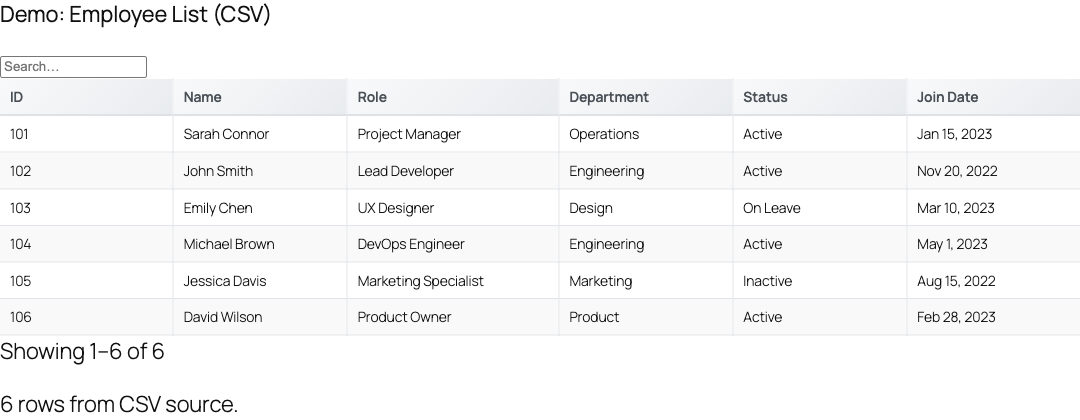
Frontend editing lets visitors update table cells directly in the page, with role-based permissions, per-field validation, and a save callback for persisting changes. Turnkey frontend editing ships in the Pro product (Advanced Data Tables for Gravity Forms); the underlying engine is present in TableCrafter 3.5.6 and is reachable through the JavaScript API.
What frontend editing is (and where it lives)
Frontend editing turns a read-only TableCrafter table into an editable one: click a cell, change the value, and the change is captured, validated, and dispatched to your save logic. The capability is built into the bundled engine at assets/js/tablecrafter.js and is driven entirely by configuration, there is a global editable switch, a per-column editable flag, and a permission gate.
The free [tablecrafter] shortcode does not expose an editable attribute. Its attribute whitelist is limited to source, id, include, exclude, root, search, filters, export, per_page, sort and the auto-refresh keys. Frontend editing is therefore enabled through the JavaScript API (or the Pro plugin), not by adding an attribute to the shortcode.
The Pro feature set
TableCrafter markets frontend editing as part of the paid Advanced Data Tables for Gravity Forms (formerly Gravity Tables) upgrade. Per the plugin readme, the Pro tier bundles the editing engine documented here with the operations teams most often need:
- Frontend Editing, let users update their own entries directly from the table.
- Role-Based Permissions, control exactly who can view, edit, or delete data.
- Bulk Actions, delete, approve, or modify many entries at once.
- Advanced Filtering, logic-based filters, date ranges, and multi-select dropdowns.
- Conditional Formatting and Pro Export, highlight rows by value and export filtered views to Excel, CSV, or PDF.
A 7-day free trial is available from the in-plugin upgrade panel under WP Admin → TableCrafter.
Enabling editing through the JS API
The editing engine is exposed by the global TableCrafter class. You instantiate it against a container and pass a configuration object. Three conditions must all be true for a cell to become editable: the global editable flag, the column's own editable flag, and a passing edit permission check.
// Initialize an editable table against an existing container
const table = new TableCrafter('#my-table', {
  data: rows,
  editable: true,                 // global master switch (default false)
  columns: [
    { field: 'name',   label: 'Name',   editable: true },
    { field: 'email',  label: 'Email',  editable: true, type: 'email' },
    { field: 'status', label: 'Status', editable: false } // stays read-only
  ],
  onEdit(change) {
    // change = { row, field, oldValue, newValue }
    console.log('Saved', change);
  }
});
Configuration reference
| Key | Type | Default | Description |
|---|---|---|---|
| editable | boolean Required | false | Master switch. Must be true before any cell can be edited. |
| columns[].editable | boolean Required | undefined | Per-column opt-in. A column is only editable when this is truthy. |
| columns[].type | string Optional | text | Controls the editor rendered for the cell (see Cell types). |
| columns[].lookup | object Optional | undefined | Renders a lookup dropdown editor instead of a free-text input. |
| onEdit | function Optional | undefined | Called after a successful save with { row, field, oldValue, newValue }. |
| validation | object Optional | enabled | Validation behaviour and per-field rules (see Validation). |
| permissions | object Optional | disabled | Role gate for view/edit/delete/create (see Permissions). |
| api | object Optional | - | REST endpoints for persisting edits server-side (see Persisting edits). |
How an edit happens
The interaction model is implemented in startEdit(), saveEdit(), and cancelEdit():
- An editable cell receives the
tc-editableCSS class and a click handler. - Clicking it calls
startEdit(), which re-checkshasPermission('edit', row)and then swaps the cell content for an inline editor. - The editor is chosen by column: a
tc-edit-selectdropdown for lookup columns, a registered rich editor for knowntypes, or a plaintc-edit-inputotherwise. - Enter or blur commits via
saveEdit(); Escape reverts viacancelEdit(). Only one cell edits at a time, opening a new editor cancels the previous one.
Inside saveEdit() the order of operations is: validate the value, write it into the in-memory row, optionally PUT it to your API, then fire the onEdit callback and re-render the cell with its formatted value. If the API call throws, the change is rolled back to oldValue and the edit is cancelled.
Cell types (editor controls)
The editor rendered for a cell depends on column.type. The engine ships rich editors registered for these types via the cellTypes config:
| Type | Editor |
|---|---|
| text / textarea | Single-line or multi-line input. |
| number / range | Numeric input with step and precision. |
| email / url | Validated text inputs. |
| date / datetime | Date and date-time pickers. |
| select / multiselect | Dropdowns, optionally searchable / multiple. |
| checkbox / radio / color / file | Boolean, choice, color, and file editors. |
Columns carrying a lookup definition always render a dropdown built from the looked-up values, and the saved value is reformatted for display after commit.
Validation
Validation runs in saveEdit() whenever validation.enabled and validation.validateOnEdit are both true (both default to enabled). Rules are declared per field under validation.rules; if a value fails, the editor reverts to the original value, regains focus, and an error tooltip is shown.
const table = new TableCrafter('#my-table', {
  editable: true,
  columns: [ { field: 'email', editable: true, type: 'email' } ],
  validation: {
    enabled: true,
    validateOnEdit: true,
    rules: {
      email: { required: true, email: true },
      name:  { required: true, minLength: 2, maxLength: 80 }
    }
  }
});
Supported rule keys include required, email, minLength, maxLength, min, max, and pattern. Default messages are defined under validation.messages and can be overridden. A failing cell gets the tc-validation-error class and a tc-validation-tooltip bubble.
Permissions
The permission system is the gate that makes "let users edit their own entries" possible. It is off by default (every cell is editable when permissions.enabled is false). When enabled, each action maps to a list of allowed roles, with '*' meaning everyone.
const table = new TableCrafter('#my-table', {
  editable: true,
  permissions: {
    enabled: true,
    view:   ['*'],
    edit:   ['editor', 'administrator'],
    ownOnly: true   // users may only edit rows they own
  }
});

// Provide the current user so role + ownership checks can run
table.setCurrentUser({ id: 42, roles: ['editor'] });| Key | Description |
|---|---|
| permissions.enabled | Turns the gate on. When false, hasPermission() always returns true. |
| permissions.edit | Array of roles allowed to edit; '*' allows all. |
| permissions.ownOnly | When true, a user can only edit rows whose user_id or created_by matches their id. |
Call setCurrentUser({ id, roles }) before relying on ownOnly or role checks. Roles can be supplied as user.roles or user.permissions. Frontend permissions are a UX gate, not a security boundary, always re-check capabilities on the server before writing data.
Persisting edits
By default an edit updates only the in-memory dataset and fires onEdit. To persist server-side, supply an api block; saveEdit() then issues a PUT to the configured update endpoint and rolls back on failure.
const table = new TableCrafter('#my-table', {
  editable: true,
  api: {
    baseUrl: '/wp-json/my-app/v1',
    endpoints: { update: '/update' },
    headers: { 'X-WP-Nonce': myNonce }
  },
  onEdit({ row, field, oldValue, newValue }) {
    // runs after the PUT succeeds
  }
});
The request targets ${baseUrl}${endpoints.update}/${row.id} with the changed field in the body. If no api.baseUrl is set, the update falls back to a purely local change.
Styling and events
Editing surfaces a small set of stable hooks you can target from CSS and JavaScript:
| Hook | Where it applies |
|---|---|
| tc-editable | Class on every editable cell (and editable card value). Shows a hover border. |
| tc-edit-input | Class on the inline text/number/date input editor. |
| tc-edit-select | Class on the inline dropdown editor (lookup / select columns). |
| tc-validation-error / tc-validation-tooltip | Applied to a cell that fails validation, plus its error bubble. |
| onEdit (config callback) | The reliable per-edit hook: { row, field, oldValue, newValue }. |
| tablecrafter:cardEdit | CustomEvent dispatched from the container in mobile card mode when a card's Edit action is tapped. |
All cell types respond to the same keyboard contract: Enter or clicking away commits the edit, Escape cancels and restores the original value. Editable cells are also included in the table's keyboard-navigation focus order.
Limitations to be aware of
- There is no
editableshortcode attribute, editing is configured via the JS API or enabled through the Pro plugin. - Permission checks are client-side; enforce real capability checks on your REST endpoint.
- The free build is a read-optimized viewer (it caches with stale-while-revalidate and does not store data in your database), so write-back is your application's responsibility unless you adopt the Pro product.
Next, see pro-permissions.html for the full role model and shortcode-reference.html for the read-only attributes that pair with an editable table.