Column Management
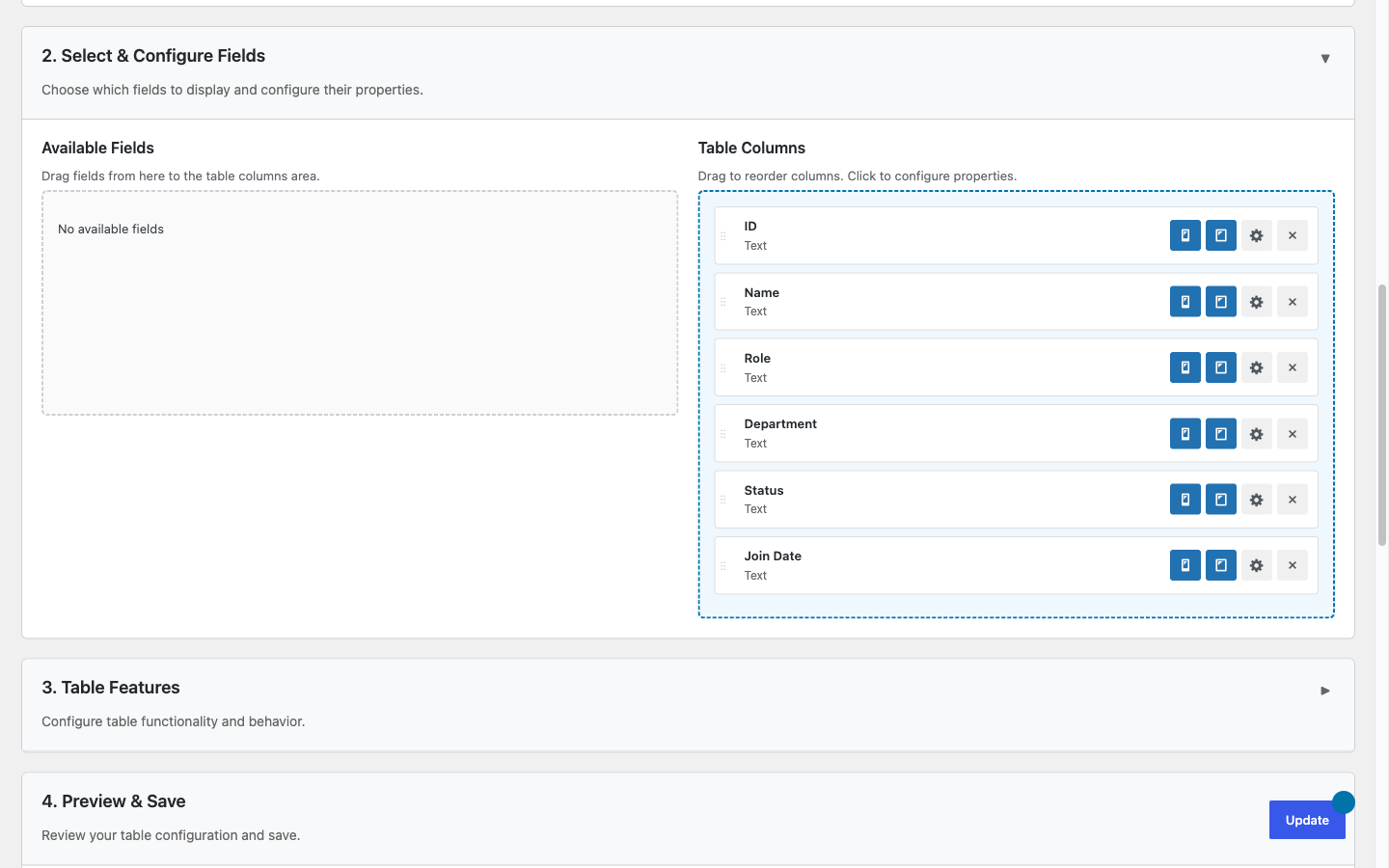
Curate exactly which fields from your data source appear as table columns, control the order they render in, and give them human-friendly headers, all from the [tablecrafter] shortcode with no template editing.
Overview
By default TableCrafter renders one column for every key found in the first row of your data source. That is convenient for tidy datasets, but JSON APIs and Google Sheets often return more fields than you want to display, internal IDs, raw timestamps, hash values, or columns that simply do not belong in a public table. Column management lets you trim that output down to a curated view.
Three attributes on the [tablecrafter] shortcode drive everything covered here:
include, an allowlist of keys to show, which also sets column order and can rename headers.exclude, a blocklist of keys to hide.root, points at the array inside a nested response so the right object keys become columns in the first place.
Column keys are matched against the property names in your data exactly as they appear in the source (for example first_name, not the displayed header First Name). Matching is case-sensitive.
Showing Specific Columns with include
The include attribute takes a comma-separated list of the keys you want to display. Any key not on the list is dropped from the table. This is the cleanest way to build a focused view from a heavy API.
# Show only three columns from a large product feed
[tablecrafter source="https://api.example.com/products.json" include="name,price,stock"]
Whitespace around each key is trimmed, so include="name, price, stock" behaves identically. The visual builder uses this exact format, the Include Columns field shows the placeholder name, price, stock as a hint.
Column Order Follows the include List
When you supply include, columns render in the order you list them, not the order they appear in the source data. This gives you full control over layout without touching the API.
# Price renders first, then the product name, then SKU
[tablecrafter source="..." include="price,name,sku"]Reordering is a side effect of include only. If you do not pass include, columns keep their natural order from the data source. To reorder without hiding anything, list every key in your preferred sequence.
Hiding Columns with exclude
When you want to keep most columns and only suppress a few, exclude is the inverse of include. It takes a comma-separated list of keys to remove; everything else is shown.
# Show every field except internal/sensitive ones
[tablecrafter source="..." exclude="id,password_hash,internal_notes"]
In the visual builder the Exclude Columns field carries the placeholder id, password_hash, reflecting the most common use case: stripping out database identifiers and secrets before data reaches the page.
Combining include and exclude
You can use both attributes together. TableCrafter applies include first (building and ordering the allowlist), then removes any exclude keys from the result. In practice include already gives you a precise allowlist, so combining them is rarely needed, but if both name the same key, exclude wins and the column is hidden.
If your filtering leaves no columns at all (for example, an include list whose keys do not match any field in the data), the table cannot render. Double-check that key names match the source exactly, including underscores and capitalization.
Custom Column Labels (Header Aliasing)
Raw data keys are often machine-friendly rather than reader-friendly. TableCrafter lets you rename a header directly inside the include attribute using a key:Label alias syntax, no need for a separate attribute or filter.
# Rename headers while curating the view
[tablecrafter source="..." include="first_name:First Name,price:Price (USD),sku:Item Code"]
Everything before the first colon is the data key used to pull values; everything after it becomes the displayed header text. You can mix aliased and plain keys freely in the same list, any key without a colon keeps its automatic label.
# "name" keeps its auto label; "stock_qty" is renamed
[tablecrafter source="..." include="name,stock_qty:In Stock"]Aliasing is part of the include attribute, so it works only on columns you are explicitly including. The alias affects the column header and the mobile card-view label, but not the underlying key, so sorting, filtering, and the exclude list all still reference the original key name.
Automatic Header Formatting
When you do not provide an alias, TableCrafter generates a readable header from the key automatically: underscores become spaces and each word is capitalized. So first_name displays as First Name and order_total displays as Order Total. Supply an alias only when the auto-formatted version is not what you want.
| Source key | Auto-generated header |
|---|---|
| first_name | First Name |
| order_total | Order Total |
| sku | Sku |
The sku example shows why aliasing is useful: an acronym like SKU is not something the formatter can infer, so include="sku:SKU" gives you the casing you actually want.
Attribute Reference
| Attribute | Required | Description |
|---|---|---|
| include | Optional | Comma-separated allowlist of keys to show. Sets column order and supports key:Label aliasing. Default: empty (all columns shown). |
| exclude | Optional | Comma-separated blocklist of keys to hide. Applied after include. Default: empty. |
| root | Optional | Dot-path to the array inside a nested response (for example data.results) so the correct object keys are detected as columns. |
| source | Required | The JSON API, CSV, or Google Sheet URL whose keys become the available columns. |
Pointing at the Right Data with root
Column detection always reads the keys of the first object in the target array. If your API wraps its rows inside an envelope, you must first reach that array with root, otherwise TableCrafter sees the envelope's top-level keys instead of your row fields.
# Rows live at response.data.items, point root there first,
# then curate the columns inside each item
[tablecrafter source="https://api.example.com/feed.json" root="data.items" include="title,author,published"]
For simple value lists (an array of strings or numbers rather than objects) TableCrafter auto-wraps each entry into a single column labeled Value, which you can then alias with include="Value:Item".
Managing Columns in the Visual Builder
You do not have to write these attributes by hand. From the WordPress admin menu open TableCrafter, enter your data source URL, then fill the Include Columns and Exclude Columns fields. The builder generates the matching [tablecrafter] shortcode for you and lets you preview the curated result on live data before copying it. The same attributes are exposed as sidebar controls in the Gutenberg block and the Elementor widget, so column management works identically across all three integration methods.
Use Preview Table in the builder after editing your include/exclude lists. Because key matching is exact and case-sensitive, the preview is the fastest way to confirm you spelled every field name correctly.
How Column Filtering Behaves
- Server-side and SEO-friendly: column selection happens when the table is rendered on the server, so only the included columns appear in the page HTML, hidden fields are never sent to the browser in the rendered table.
- Order is deterministic: with
includepresent, header order exactly mirrors your list; without it, the source order is preserved. - Labels propagate: an alias sets both the desktop
<th>header and the per-row label shown in the mobile card layout. - Keys stay stable: sorting and filtering always operate on the original data key, so aliasing a header never breaks interactive features.
Next, see filtering-and-search.html to add live search and per-column filters to your curated columns, or data-export.html to export the visible columns to CSV, XLSX, or PDF.