Working with Nested JSON
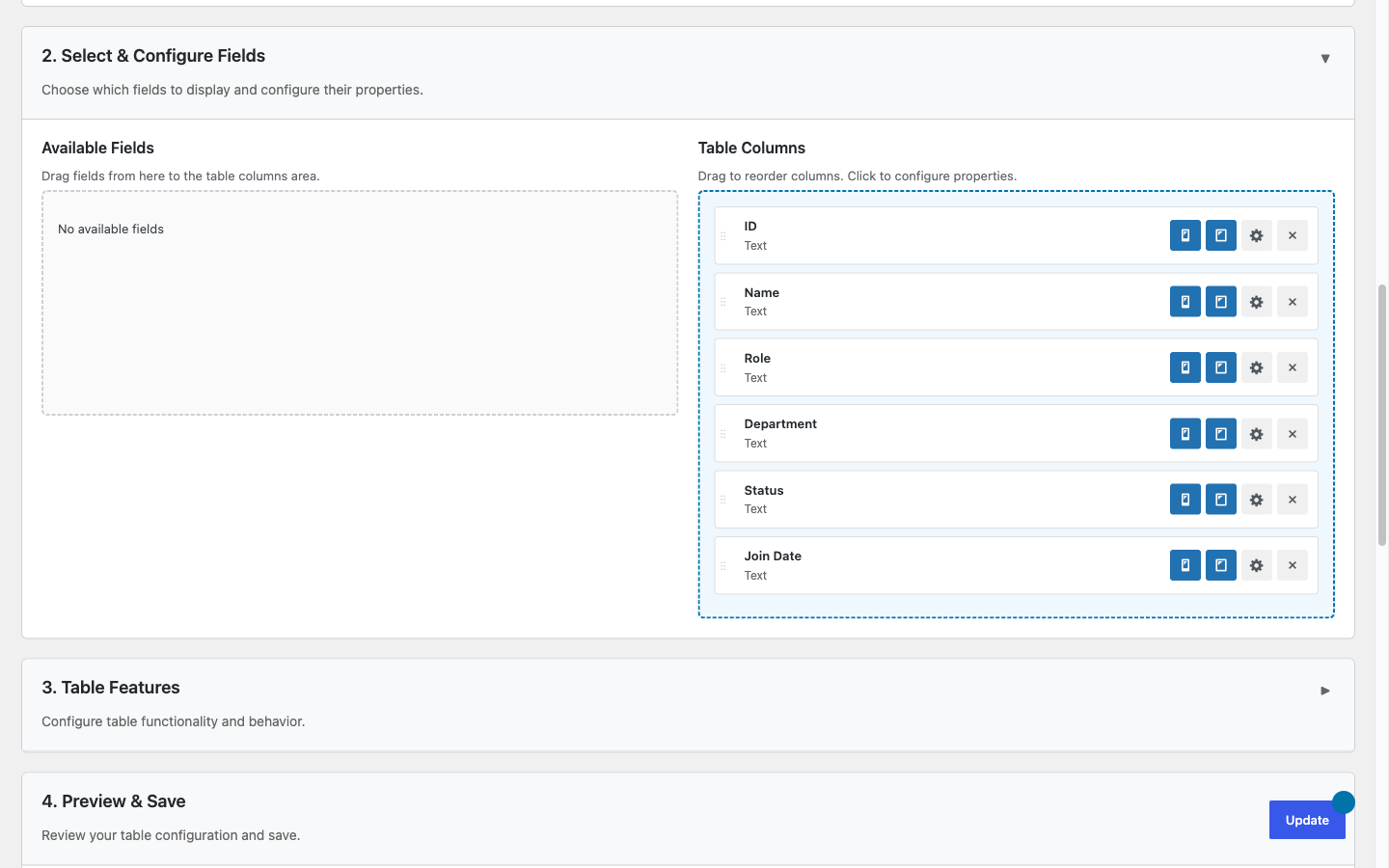
Most real-world APIs wrap their rows inside a parent object instead of returning a bare array. TableCrafter's root attribute lets you drill into that wrapper with a dot-notation path, and its value renderer automatically flattens any leftover nested objects and arrays into readable table cells.
Why you need a data path
TableCrafter expects a list of objects — an array where each element becomes one table row and each key becomes a column. A clean endpoint returns exactly that:
[
  { "sku": "PRD-001", "product_name": "Wireless Headphones", "price": 99.99 },
  { "sku": "PRD-002", "product_name": "Ergonomic Office Chair", "price": 249.50 }
]
But many APIs nest that array under one or more parent keys, alongside metadata like paging or status:
{
  "status": "ok",
  "data": {
    "results": [
      { "sku": "PRD-001", "product_name": "Wireless Headphones", "price": 99.99 },
      { "sku": "PRD-002", "product_name": "Ergonomic Office Chair", "price": 249.50 }
    ]
  }
}
Point TableCrafter straight at this URL without a path and it sees a single object at the top, not a list of rows. The root attribute tells it where the row array actually lives.
Selecting the data path with root
Set root to a dot-separated path of the keys leading to your row array. TableCrafter splits the value on each . and walks the structure one segment at a time. For the example above, the array lives at data → results:
[tablecrafter source="https://api.example.com/catalog" root="data.results"]Each segment must match a key exactly — the lookup is case-sensitive and uses literal key names, so use data.results, never data[results] or $.data.results. There is no array-index or wildcard syntax; root resolves keys only and the final segment must point at the array of rows (or at a single object, which is treated as a one-row table).
If you leave root empty (the default), TableCrafter uses the entire decoded response as-is. That is correct only when your endpoint already returns a top-level array of objects.
The root attribute at a glance
| Attribute | Required | Description |
|---|---|---|
| root | Optional | Dot-notation path to the row array inside a nested response, e.g. data.results or response.items. Empty by default (uses the whole response). |
| source | Required | The data source URL (REST/JSON endpoint, JSON file, public Google Sheet, or CSV). The root path is applied after this response is fetched and decoded. |
| include | Optional | Comma-separated columns to keep, applied after the path resolves. Supports aliasing with key:Label (see below). |
| exclude | Optional | Comma-separated columns to drop after the path resolves. |
| sort | Optional | Initial sort in column:direction form, e.g. price:desc. The column must exist in the resolved rows. |
Configuring the path in the admin generator
You do not have to hand-write the shortcode. Open WP Admin → TableCrafter to reach the dashboard and shortcode generator:
- Paste your endpoint into the Data Source URL field.
- In the Data Root (Optional) field (placeholder
data.items), enter your dot-notation path, for exampledata.results. - Use the live preview to confirm rows appear, then copy the generated
[tablecrafter]shortcode.
The same control exists in the other integration methods, so the underlying root value is identical everywhere:
| Integration | Field label | Placeholder / hint |
|---|---|---|
| Shortcode generator | Data Root (Optional) | data.items |
| Gutenberg block | Data Root Path (Optional) | For nested JSON: dot-notation path to the data array (e.g. data.items, response.results). |
| Elementor widget | JSON Root Path | data.results |
How flattening into columns works
Once root resolves to your array, TableCrafter builds the column set from the keys of the first row, then renders every cell through its value renderer. The renderer flattens nested structures so a column never spills raw JSON into the page:
- Scalar values (strings, numbers) render as text. ISO dates like
2026-06-21become a<time>element, email addresses becomemailto:links, and image/HTTP URLs become images or links. - Booleans render as a badge:
trueshows Yes via<span class="tc-badge tc-yes">andfalseshows<span class="tc-badge tc-no">. - Plain (indexed) arrays — such as a
tagslist — render as a chip row: a<div class="tc-tag-list">wrapper containing one<span class="tc-tag">per item. Beyond 10 items a<span class="tc-tag tc-more">+N more</span>chip is appended. - Nested objects / associative arrays are collapsed to a single chip. The renderer looks for a friendly display key in this order —
name,title,label,text,value— and shows that value; if none is present it falls back to a safe JSON string. Long values are truncated at 100 characters.
Flattening happens at the cell level. The root path selects which array becomes your rows; the value renderer then makes any remaining nesting inside each row human-readable. They work together: pick the right root first, then let the renderer handle leftover objects and lists.
Pushing deeper instead of flattening a column
If the data you actually want to tabulate is the nested object — not the wrapper around it — extend root to point further in. Given {"company": {"departments": [ ... ]}}, use root="company.departments" so each department becomes a row rather than being squeezed into one chip.
Worked example: nested products with column control
Suppose your endpoint returns rows under data.results and each row has a verbose product_name plus a numeric price. This shortcode selects the path, keeps three columns, renames one with an alias, sorts by price descending, and turns on search and export:
[tablecrafter
  source="https://api.example.com/catalog"
  root="data.results"
  include="sku,product_name:Product,price"
  sort="price:desc"
  search="true"
  export="true"]
The key:Label form inside include (here product_name:Product) relabels the header without changing the underlying key, which is useful after flattening when raw JSON keys are not presentation-ready. Columns you omit from include are dropped; alternatively use exclude to remove specific keys while keeping the rest.
Path errors and how to fix them
When a path or structure is wrong, TableCrafter returns a precise message. Logged-in administrators see a Setup Guide helper box with the exact error; visitors see a graceful fallback instead.
| Message | Cause | Fix |
|---|---|---|
| Path Error: Key '…' not found in data structure. | A segment in root does not match a key at that level (typo, wrong case, or wrong nesting). | Re-check each segment against the raw JSON; remember keys are case-sensitive. |
| Structure Error: The target data is not a list/array. | The path resolved to a scalar (string/number) rather than an array or object. | Point root at the array of rows, not at a single field inside a row. |
| Empty Dataset: No rows found at this path. | The path resolved to an empty array. | Confirm the endpoint currently returns data and the path is correct. |
| Rendering Error: …a simple list, not a table (list of objects). | The array contains scalars, not objects. | TableCrafter auto-wraps a flat list into a single Value column; if you expected multiple columns, target a deeper array of objects. |
Because columns are derived from the first row, an irregular dataset where the first object is missing keys can hide columns present in later rows. If a column disappears, normalize the source or reorder so a fully-populated object comes first.
How it renders under the hood
The root path is applied identically on both render paths. On first load TableCrafter resolves the path in PHP and emits a fully server-side table (great for SEO); the resolved path is also written to the container as a data-root attribute on <div class="tablecrafter-container">, where the JavaScript layer re-applies the same dot-notation traversal for live search, sorting, and auto-refresh. You configure the path once and both layers stay in sync.
Next steps
Now that your rows are flowing, fine-tune which keys appear and how they're labelled in Column Management, or connect a structured backend that pre-flattens nested fields with Using Airtable as a Data Source.