Recipe: Comparison Table
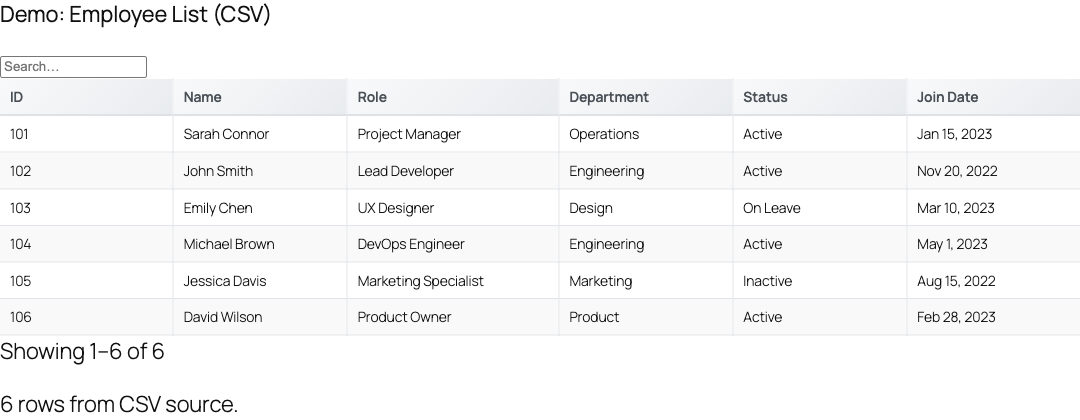
Turn a JSON or CSV feed of products, plans, or services into a clean, sortable comparison table by curating exactly which columns appear, renaming their headers, and locking their order with the [tablecrafter] shortcode.
What you will build
A "feature comparison" table is really a column-management problem. Your raw data usually has more fields than a reader needs (internal IDs, timestamps, slugs), the field names are machine-style (product_name, stock_level), and the column order rarely matches how you want to present it. TableCrafter solves all three from a single shortcode, with no copy-paste of cell data.
In this recipe we take a product feed and render a focused comparison table that shows only the columns we care about, with friendly headers, in a deliberate order, pre-sorted by price.
The data source
TableCrafter reads a list of objects (an array of rows) from any reachable JSON or CSV URL. The bundled demo file demo-data/products.json is a good stand-in. Each row looks like this:
[
  {
    "sku": "PRD-001",
    "product_name": "Wireless Headphones",
    "category": "Electronics",
    "price": 99.99,
    "stock_level": 45,
    "rating": 4.5
  }
]
The keys of the first row (sku, product_name, category, price, stock_level, rating) become the candidate columns. Your job is to decide which of those to show, in what order, and under what labels.
If your rows are nested under a wrapper object (for example {"data": {"items": [ ... ]}}), point the root attribute at the dotted path to the list, e.g. root="data.items". TableCrafter walks each segment before building the table.
Step 1, Drop the shortcode in a page
Edit any post or page and add a Shortcode block (or the TableCrafter block) containing the minimal form. The only required attribute is source:
[tablecrafter source="https://example.com/demo-data/products.json"]This renders every column. That is your baseline before you start curating.
Step 2, Pick the comparison columns with include
The include attribute is the core of column management. Pass a comma-separated list of the source keys you want, and only those columns are rendered. Equally important: the order you list them in becomes the column order in the output, regardless of their order in the source data.
[tablecrafter source="https://example.com/demo-data/products.json"
  include="product_name, price, rating, stock_level"]
Here sku and category are omitted, and the columns appear in exactly the sequence given. Internally TableCrafter intersects the source headers with your list and then re-sorts them to match your order, so reordering is just a matter of rearranging the names.
include and exclude are complementary. Use include when you want a short whitelist of comparison columns; use exclude="sku, internal_id" when you want every column except a few. If both are present, include selects first and exclude trims from that result.
Step 3, Rename headers with the alias syntax
Machine field names like product_name and stock_level read poorly in a comparison table. By default TableCrafter title-cases keys (so stock_level becomes "Stock Level"), but you can override any header with the key:Alias form inside include. The text before the colon is the source key; the text after is the display label.
[tablecrafter source="https://example.com/demo-data/products.json"
  include="product_name:Product, price:Price (USD), rating:Avg Rating, stock_level:In Stock"]
The alias affects both the visible <th> text and the per-cell data-tc-label attribute that drives the responsive mobile layout, so your renamed headers stay consistent on small screens too.
Step 4, Pre-sort the comparison
A comparison table is most useful when it opens in a meaningful order. Use the sort attribute in column:direction format. The column is matched against the source key (not the alias), and direction is asc or desc.
[tablecrafter source="https://example.com/demo-data/products.json"
  include="product_name:Product, price:Price (USD), rating:Avg Rating, stock_level:In Stock"
  sort="price:desc"]
TableCrafter sorts numerically when both values are numeric (so 249.50 ranks above 99.99 correctly) and falls back to case-insensitive string comparison otherwise. The server-rendered header for the sorted column also carries aria-sort="descending" for screen readers.
The sort attribute only sets the initial order. Every header is clickable and keyboard-focusable (th.tc-sortable with tabindex="0"), so visitors can re-sort any column at runtime to compare on a different dimension.
Step 5, Add search, filters, and export
For a richer comparison, layer on the optional interaction features. Each is a boolean attribute that accepts true/false:
search="true"renders a global search box (the.tc-global-searchinput) that filters rows across all visible columns.filters="true"renders per-column filter controls in the.tc-filters-rowregion. This is on by default.export="true"renders an export menu so readers can download the comparison as CSV, XLSX, or PDF.
[tablecrafter source="https://example.com/demo-data/products.json"
  include="product_name:Product, category:Category, price:Price (USD), rating:Avg Rating"
  sort="rating:desc"
  search="true" export="true"]
The export pipeline produces genuine files: a real OOXML .xlsx workbook (not a renamed CSV) and a real PDF, both built server-side from the same dataset the table is showing.
Attribute reference
These are the attributes most relevant to building and curating a comparison table.
| Attribute | Required | Purpose |
|---|---|---|
| source | Required | URL of the JSON or CSV feed. Local site files and Google Sheets CSV links are supported. |
| include | Optional | Comma-separated whitelist of columns; sets both which columns show and their order. Supports key:Alias for renaming headers. |
| exclude | Optional | Comma-separated list of columns to drop. Applied after include. |
| root | Optional | Dotted path to the row list when it is nested (e.g. data.items). |
| sort | Optional | Initial sort in column:direction form, e.g. price:desc. Column matches the source key. |
| search | Optional | true enables the global search box. Default off. |
| filters | Optional | true/false for per-column filter controls. Default on. |
| export | Optional | true enables CSV / XLSX / PDF export. Default off. |
| per_page | Optional | Rows per page; any non-zero value enables pagination. |
| id | Optional | Custom container ID. Auto-generated when omitted. |
Verify in the admin preview
You do not have to publish to test. In wp-admin, open TableCrafter from the main menu (the table icon, requires the manage_options capability). The dashboard includes a shortcode generator and a live-preview playground with dedicated fields for the data root path, include columns, and exclude columns, so you can iterate on the column set and see the result before copying the finished shortcode into a page.
Theming the comparison table
The rendered markup is a plain semantic table you can style with your theme CSS. There are no required wrapper plugins. Useful hooks for styling:
.tc-table, the table element;.tc-table-container, the scrollable, bordered wrapper..tc-table th, sticky, shaded header cells;.tc-sortable, clickable headers, with the active direction exposed via thearia-sortattribute selector ([aria-sort="ascending"]/[aria-sort="descending"]).td[data-tc-label], each cell carries its (aliased) column label, which the responsive stylesheet uses to label stacked cells on narrow screens.
TableCrafter ships fixed color values (the header background is #f8f9fa, active sort indicators are #007bff) rather than CSS custom properties. To rebrand the comparison table, override these classes in your own stylesheet with higher specificity; there are no --tc-* variables to set.
Next steps
To pull comparison data from a live spreadsheet instead of a static file, see data-sources.html; to fine-tune the download buttons you enabled in Step 5, see exporting.html.