Mapping Fields to Columns
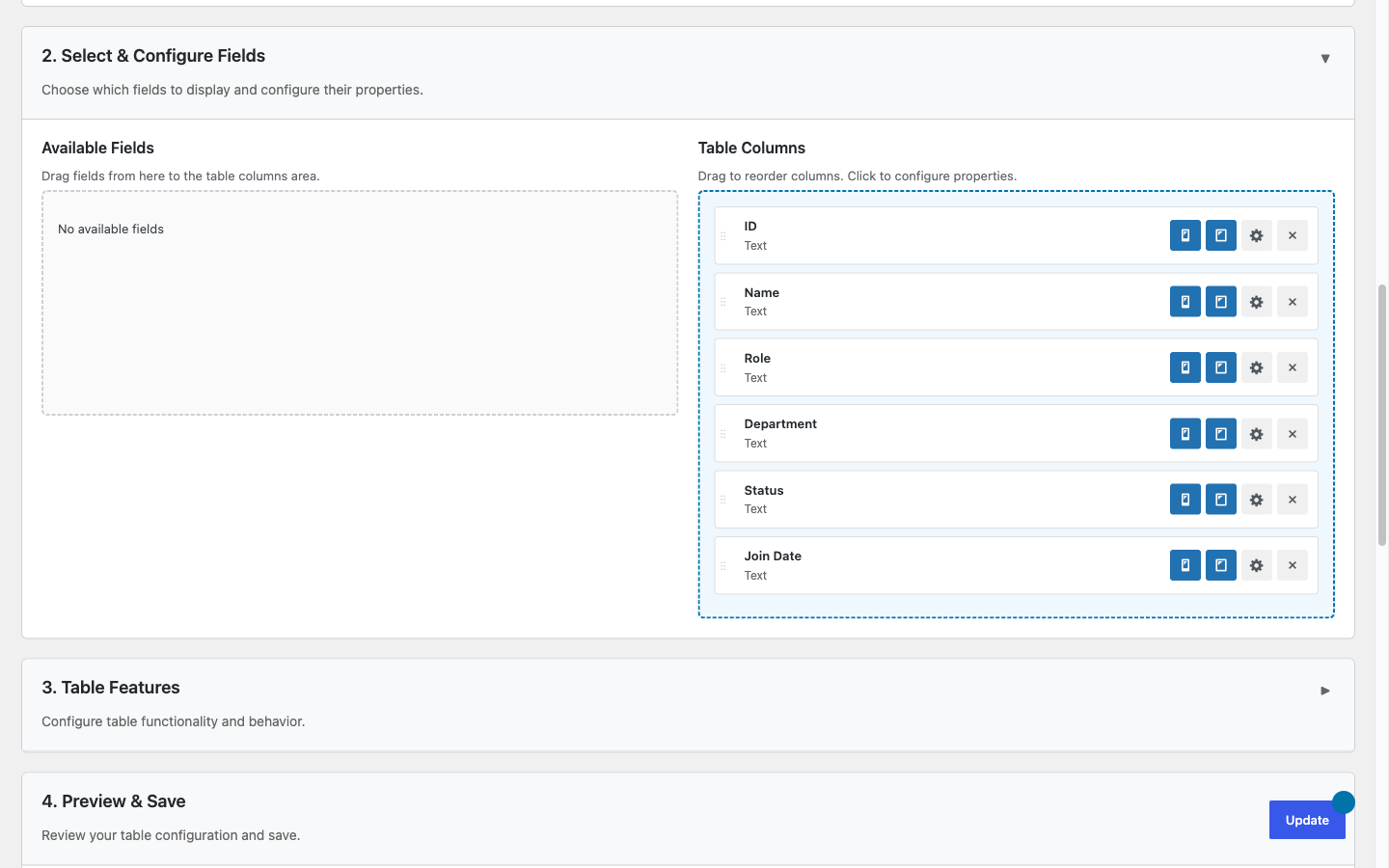
By default TableCrafter turns every field in your data source into a column. The include, exclude, and root attributes let you curate exactly which fields become columns, control their left-to-right order, and rename their headers without touching the source data.
How fields become columns
When TableCrafter loads a data source it reads the first row (or first object) and uses its keys as the column set. Every key is shown in source order, and each header is auto-formatted: underscores become spaces and words are title-cased. The key unit_price renders as Unit Price, and sku renders as Sku.
The rendered markup is real, crawlable HTML produced on the server. Each header is emitted as <th class="tc-sortable" data-field="unit_price"> inside a <table class="tc-table">, and each cell carries a data-tc-label attribute that drives the mobile card view. Because the column model is derived from the first row, your three mapping levers all operate on those keys:
- Selecting which keys appear,
include/exclude - Ordering the visible columns, the sequence you list in
include - Relabeling headers, the
key:Aliassyntax insideinclude
Field keys are matched exactly and are case-sensitive. Price and price are treated as two different fields. Copy keys directly from your JSON, CSV header row, or Google Sheet column names.
Pointing at the right data first (root)
Column mapping only works once TableCrafter is looking at a flat list of rows. If your API wraps the records in a parent object, use root to drill into the array with dot notation before any columns are derived.
// API returns { "results": { "items": [ {…}, {…} ] } }
[tablecrafter source="https://api.example.com/data.json" root="results.items"]
Each dotted segment is followed in turn. If a segment is missing, TableCrafter returns a path error (visible to administrators) so you can correct the path. A simple list of scalars (for example ["a","b","c"]) is auto-wrapped into a single Value column so it still renders as a table.
Attribute reference
| Attribute | Required | Description |
|---|---|---|
| source | Required | URL, uploaded file, or public Google Sheet link the table reads from. |
| root | Optional | Dot-notation path to the row array inside a nested response (e.g. data.items). Applied before columns are derived. |
| include | Optional | Comma-separated list of field keys to show. Also sets column order and, with key:Alias, the header label. |
| exclude | Optional | Comma-separated list of field keys to hide. Applied after include. |
| sort | Optional | Initial sort in column:direction form (e.g. price:desc). Must target a visible column key. |
Choosing which fields become columns
Use include to build a curated view that shows only the fields you list. This is the recommended approach for heavy APIs that return dozens of fields you do not need.
[tablecrafter source="https://api.example.com/products.json" include="name, price, symbol"]Only name, price, and symbol are rendered; every other field is dropped. Whitespace around each item is trimmed, so "name, price" and "name,price" behave identically.
When you only want to remove a handful of sensitive or noisy fields, exclude is the inverse: it keeps everything except the keys you list.
[tablecrafter source="https://api.example.com/users.json" exclude="id, password_hash, internal_notes"]exclude runs after include. If you set both and a key appears in each, exclude wins and the column is removed. Prefer one or the other per table to keep the logic obvious.
Ordering the columns
There is no separate order attribute. Column order follows the order of keys in include. TableCrafter intersects your list with the discovered fields, then re-sorts the survivors to match your sequence exactly.
// Source key order: sku, name, price, stock
// Rendered column order: Name, Price, Sku, exactly as listed
[tablecrafter source="https://api.example.com/inventory.json" include="name, price, sku"]
A listed key that does not exist in the data is silently skipped rather than producing an empty column, so a typo drops the field instead of breaking the table. If you are not using include, columns appear in the natural order of the source's first row.
Relabeling headers (column aliasing)
To rename a header without changing the underlying field key, append :Your Label to the key inside include. The part before the colon is the real field key used to read values; the part after the colon is the display label.
[tablecrafter source="https://api.example.com/products.json"
  include="name:Product, price:Unit Cost, symbol:Ticker"]
This renders three columns headed Product, Unit Cost, and Ticker while still pulling values from the name, price, and symbol keys. Aliasing and ordering combine in a single attribute, so the example above also fixes the left-to-right sequence.
You can mix aliased and plain entries freely. Keys without a colon fall back to the auto-formatted (title-cased) header:
[tablecrafter source="https://api.example.com/orders.json"
  include="order_no:Order #, customer, total_usd:Total"]
Here customer keeps its default Customer heading while the other two use your custom labels.
Aliases propagate everywhere the label is shown. The mobile card view uses them for its field labels (.tc-card-label / the data-tc-label attribute), and exports carry them through as the column header row, your XLSX and PDF files show Unit Cost, not price.
Setting it up in the admin builder
You do not have to write the shortcode by hand. Open TableCrafter in the WordPress admin menu, enter your Data Source URL, and use the mapping fields in the Settings card:
- Data Root (Optional), the dot path to your row array (placeholder
data.items). - Include Columns, comma-separated keys to show (placeholder
name, price, stock). - Exclude Columns, comma-separated keys to hide (placeholder
id, password_hash).
As you type, the builder regenerates a copy-ready shortcode in the Usage card and refreshes the Live Preview so you can confirm the column set, order, and labels before publishing. The same include and exclude controls are available in the TableCrafter Gutenberg block (in the block sidebar) and the Elementor widget, which mirror the shortcode behavior.
The visual builder's Include Columns field generates a plain comma list. To add aliases, edit the generated shortcode and append :Label to the keys you want to rename, the relabeling is a shortcode/server feature.
A complete worked example
Bringing root selection, curation, ordering, and relabeling together for a nested product feed:
[tablecrafter
  source="https://api.example.com/catalog.json"
  root="results.products"
  include="name:Product, price:Price (USD), stock:In Stock"
  exclude="internal_id"
  sort="price:desc"
  search="true"
  export="true"]
This drills into results.products, shows exactly three columns in the order Product → Price (USD) → In Stock, hides internal_id, sorts by price descending on load, and carries the friendly labels into search and the export files.
Behavior notes and edge cases
- First-row schema: Columns come from the first row's keys. If later rows add fields the first row lacks, those fields will not get columns, make sure your first record is representative, or list every desired key in
include. - Empty result after mapping: If
include/excludeleave no columns, the table will not render. Re-check your keys against the source. - Sort targets visible columns: The
sortfield must be a column key that survives your include/exclude rules, otherwise the initial sort is ignored. - Caching: Rendered output is cached per attribute combination. Changing
include,exclude, orrootproduces a fresh render rather than reusing a stale one.
Next, see nested-json-roots.html for deeper guidance on the root path syntax, and exporting-data.html for how your aliased headers flow into XLSX and PDF downloads.