Status Badge Cell Type
Turn plain text values from Gravity Forms entries into colored pill badges with a single JSON map. Status badges make state-based data, order stages, approval workflows, inventory states, scannable at a glance without any custom CSS or PHP.
What Status Badges Do
By default, every column in a TableCrafter table renders its Gravity Forms field value as plain text. The Status Badge cell type replaces that plain text with a rounded pill element, a badge, whose background color you control per value.
The mapping is defined as a small JSON object called the badge map. Each key is an exact field value (as stored in the Gravity Forms entry), and each value is a hex color code for that badge's background. Any field value not present in the map falls back to plain text, so partial maps work fine.
Badges render consistently on every path: the initial server-side HTML load, AJAX-driven sort and filter responses, pagination, and the client-side JS render pass. There is no flicker or mismatch between what the server sends and what JavaScript redraws.
Enabling Status Badges in the Admin Builder
Status badges are configured per column inside the table builder, not globally. Every column that should show badges needs its own badge map.
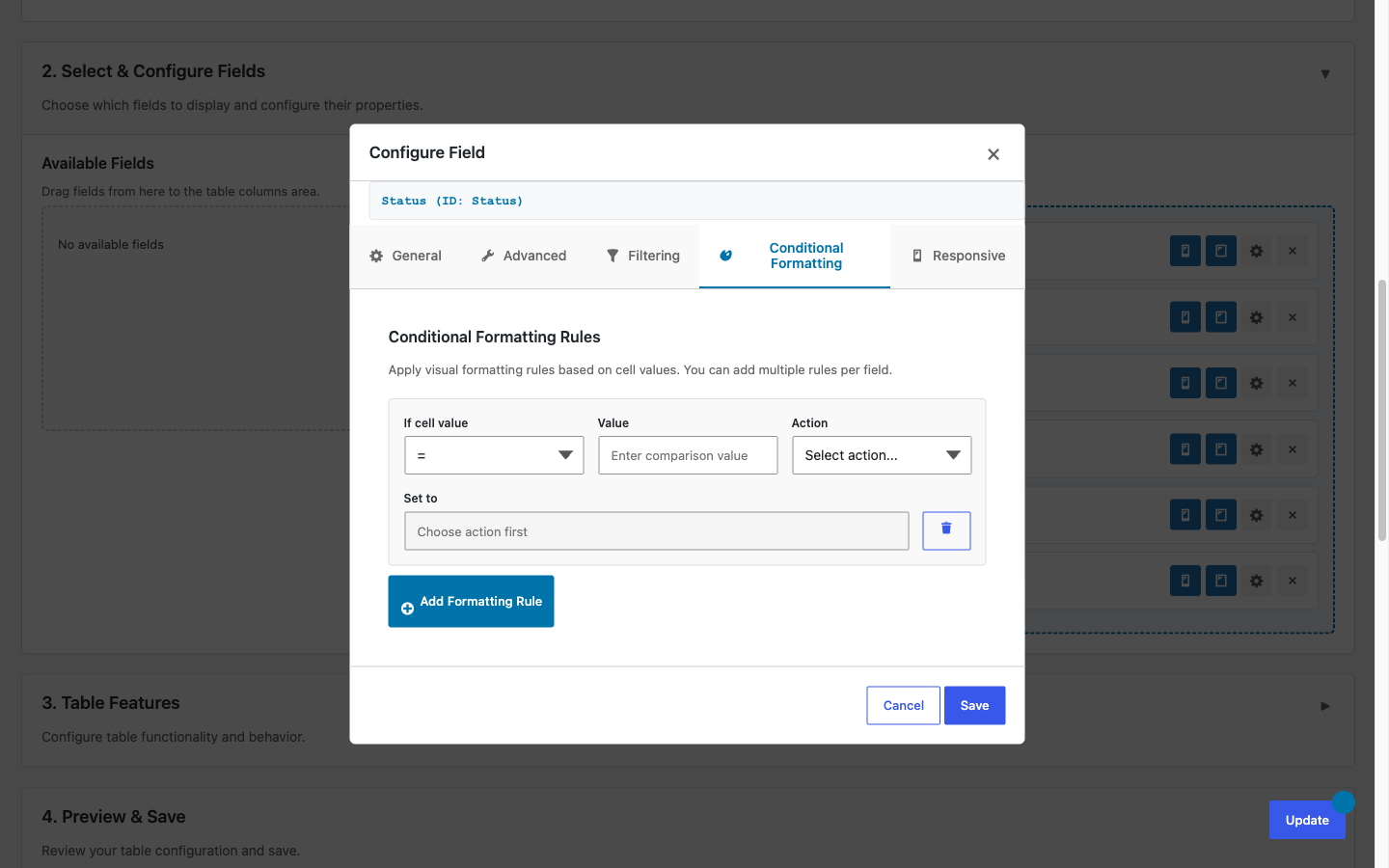
- In your WordPress admin, go to TableCrafter and open the table you want to edit (or create a new one).
- In the column list, click the gear icon on the column whose values you want to badge.
- In the column configuration modal, open the Cell Type tab.
- From the Cell Type dropdown, select Status badge.
- A Badge Map textarea appears. Enter your JSON map (see format below).
- Click Save Column, then Save Table.
Status badges work with any Gravity Forms field that stores text: dropdown fields, radio button fields, single-line text fields, and multi-select fields. The match is always against the stored entry value, not the field label.
Badge Map JSON Format
The badge map is a flat JSON object. Keys are the exact Gravity Forms entry values you want to color; values are 3- or 6-digit hex color codes for the badge background.
{
  "Active":   "#10b981",
  "Inactive": "#6b7280",
  "Pending":  "#f59e0b",
  "Rejected": "#ef4444"
}| Rule | Detail |
|---|---|
| Key matching | Case-sensitive, exact match against the stored Gravity Forms entry value |
| Color format | Hex only, #rgb or #rrggbb. Invalid hex values are rejected server-side; the column falls back to plain text for that value |
| Unmapped values | Values not present in the map render as plain text with no badge wrapper |
| Text color | Badge text is always white (#ffffff). Choose background colors with sufficient contrast |
| Partial maps | You can map only a subset of possible values. Unmapped values display as-is |
JSON must be valid. A syntax error in the badge map (missing comma, unquoted key, trailing comma) will prevent any badges from rendering for that column. Use a JSON validator if you are unsure, most browsers' developer consoles accept JSON.parse('...') for quick validation.
Practical Example: Order Status Workflow
Suppose you have a Gravity Form that accepts job orders, and one field is a dropdown named Status with choices: New, In Progress, On Hold, Completed, and Cancelled. Here is a badge map that color-codes each stage:
{
  "New":         "#3b82f6",
  "In Progress": "#f59e0b",
  "On Hold":     "#6b7280",
  "Completed":   "#10b981",
  "Cancelled":   "#ef4444"
}
Once saved, the Status column in your table renders pill badges for every entry. Dispatchers scanning a load board can immediately identify open orders (blue), stalled orders (grey), and completed runs (green) without reading each cell value individually.
Project Stage Example
For a project tracker form with a radio button field whose choices are Backlog, In Review, Approved, and Archived:
{
  "Backlog":   "#a78bfa",
  "In Review": "#f59e0b",
  "Approved":  "#10b981",
  "Archived":  "#9ca3af"
}The badge map key must match the value stored in the Gravity Forms entry, not the choice label if they differ. In most setups these are the same, but if you configured separate labels and values in the GF form builder, use the stored value (the one visible in the Gravity Forms Entries screen).
Common Use Cases
Status badges are suited for any column whose values represent a finite set of states. Common applications:
- Order / shipment status, Pending, Dispatched, Delivered, Returned
- Application status, Submitted, Screening, Interview, Offer, Rejected
- Inventory state, In Stock, Low Stock, Out of Stock, Discontinued
- Approval workflow, Draft, Pending Approval, Approved, Denied
- Project stage, Backlog, Active, Blocked, Complete, Archived
- Driver / vehicle availability, Available, On Route, Off Duty, Maintenance
Any Gravity Forms dropdown, radio button, or short-answer field that stores one of a known set of text values is a good candidate.
Security
Status badge output is hardened at two layers:
- Hex validation (server-side), The badge map is parsed and each color value is validated as a proper 3- or 6-digit hex code before being stored or rendered. Values that fail validation are silently dropped; the cell falls back to plain text for that value rather than outputting raw user input as a CSS property.
- XSS sanitization, Badge text (the Gravity Forms entry value rendered inside the pill) is passed through
esc_attr()before output. Injected HTML or script tags in a field value cannot escape the badge element.
Both the server-side AJAX path (used for sort, filter, and pagination responses) and the client-side JavaScript render pass apply the same badge map and the same sanitization rules, so there is no difference in output between the initial page load and subsequent AJAX updates.
CSS Customization
Badge pills are rendered with the class gt-badge. You can override border-radius, font size, padding, or text color by targeting this class in your theme's stylesheet or in the Custom CSS box in the table builder.
/* Round to stadium shape (default) */
.gt-badge {
  border-radius: 999px;
  font-size: 12px;
  font-weight: 600;
  padding: 3px 10px;
  color: #ffffff;
}

/* Square pill variant */
.gt-badge {
  border-radius: 4px;
}

/* Target a specific table by its wrapper ID */
#gt-table-5 .gt-badge {
  font-size: 11px;
  letter-spacing: 0.3px;
}The badge background color is applied as an inline style attribute, so it will always override any CSS class-level background rules. To change badge colors, update the badge map in the column settings rather than trying to override via CSS specificity.
For dark mode compatibility, badge backgrounds specified in the map are used as-is in both light and dark themes. Choose colors with enough contrast against white text to remain readable across both modes. Aim for a contrast ratio of at least 3:1 between the badge background and white (#ffffff) text.