Column Role Visibility
Restrict individual table columns to specific WordPress roles so that sensitive Gravity Forms entry data is never visible to unauthorized users, not even as hidden markup or raw JSON in the network response.
Requires TableCrafter Pro. Column Role Visibility is a Pro-only feature. The column configuration UI and all server-side enforcement are unavailable on the free tier. Upgrade to Pro to enable it.
What It Does
Column Role Visibility lets you assign an allowed-roles list to any individual column in a TableCrafter table. When a logged-in user loads a page containing [tablecrafter id="TABLE_ID"], TableCrafter checks that user's WordPress roles against each column's allowed-roles list on the server before the response is ever sent.
A column is hidden if and only if two conditions are both true:
- The column's allowed-roles list is non-empty (at least one role is checked), and
- The current user holds none of the listed roles.
If the allowed-roles list is empty, the column is visible to every authenticated user who can access the table, this is the default state for all columns. There is no admin exemption built in by default; an administrator who is not listed in the allowed-roles list will not see the column either.
Composite Gravity Forms sub-inputs (such as the individual parts of a Name or Address field) are also stripped when their parent column is restricted. You do not need to configure each sub-input separately.
Configuring Allowed Roles Per Column
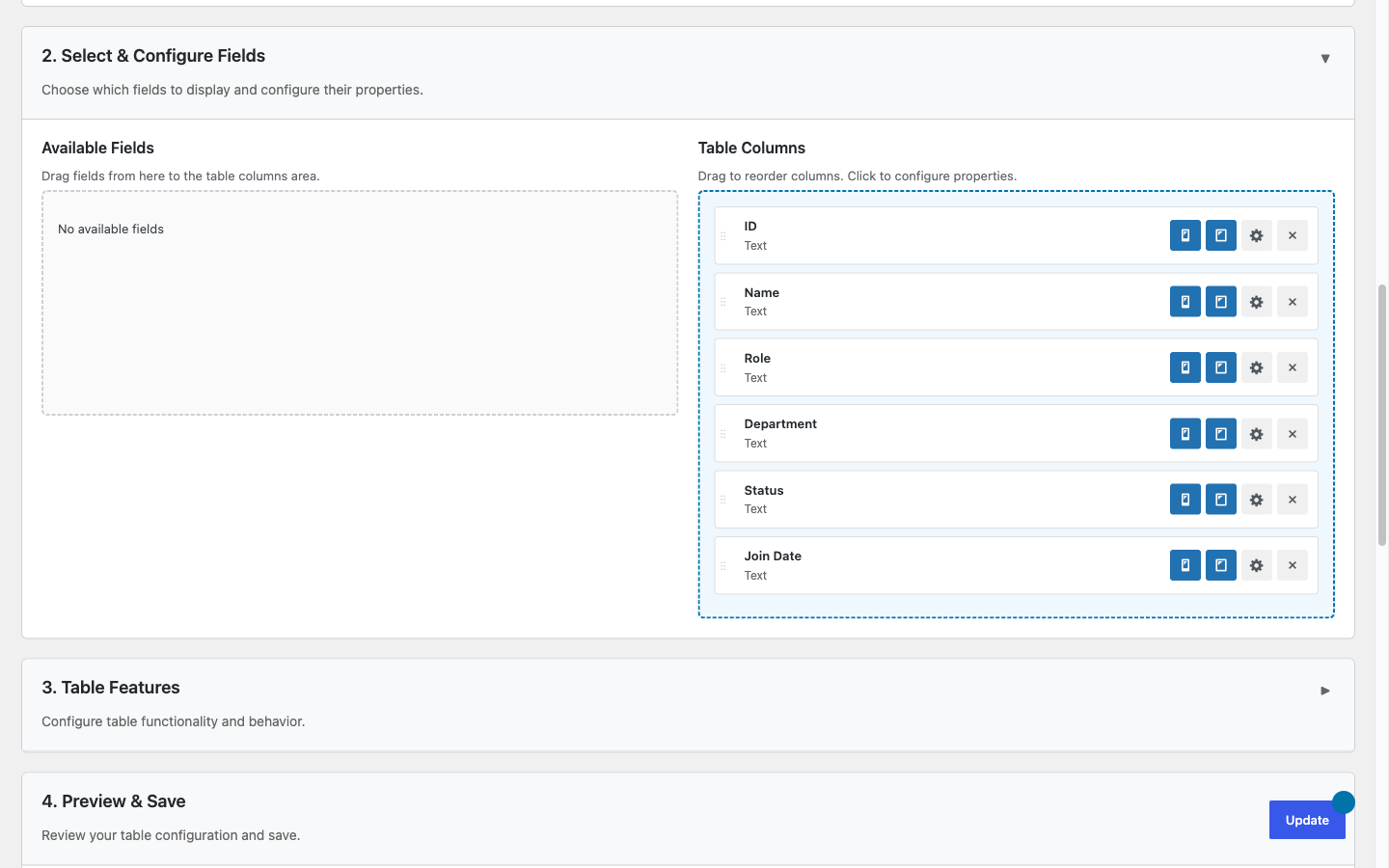
Role restrictions are set inside the TableCrafter table builder, which lives at WordPress Admin › TableCrafter › Tables. Open an existing table or create a new one, then follow these steps for each column you want to restrict:
- In the column list on the left side of the builder canvas, locate the column row you want to restrict.
- Click the gear icon on that column row to open its field configuration modal.
- Inside the modal, find the "Visible to roles" section. It lists every WordPress role registered on your site (e.g.,
administrator,editor,author,subscriber, plus any custom roles). - Check one or more roles. Only users who hold at least one of the checked roles will see this column.
- Leave all checkboxes unchecked to make the column visible to everyone (the default).
- Click Save in the modal, then save the table configuration.
Multiple roles work as OR logic. If you check both editor and hr_manager, a user with either of those roles will see the column. The user does not need to hold both.
Repeat this process for as many columns as needed. Columns without any checked roles remain visible to all users. Your role selections are saved as part of the table configuration and take effect immediately on the next page load, no caching to clear on the plugin side, though your hosting cache may need a flush.
How the Role Check Works
When a visitor loads a page with a [tablecrafter] shortcode, or when the table fires an AJAX request to fetch or refresh its entries, TableCrafter runs the visibility check server-side through the GT_Column_Visibility helper class. The check works as follows:
- TableCrafter reads the saved
column_configfor the requested table from the database. - For each column, it reads the
visible_to_rolesarray stored in the column config. - It calls
wp_get_current_user()and compares$user->rolesagainst the allowed list. - Any column where the allowed list is non-empty and the user holds none of the listed roles is stripped from both the column config and the entries payload before the response leaves the server.
- The remaining (permitted) columns and their entry values are returned to the browser.
Because the strip happens before the response is assembled, restricted column headers (<th>), cell values (<td>), and all associated metadata are absent from the HTML and JSON that reaches the client. There is nothing for browser DevTools to reveal about a column the user is not allowed to see.
Unauthenticated users. Users who are not logged in have no WordPress roles. If a column has any allowed roles checked, it will be hidden from all guests. Consider this when using TableCrafter on a publicly accessible page.
Security: Why Server-Side Enforcement Matters
TableCrafter shipped initial role visibility support in v6.4.6, where the feature worked by passing a visibility map to the JavaScript bundle and hiding columns with display:none on the client side. This approach had a meaningful security gap: the restricted column values, the visibility map itself, and the viewer's role list all traveled to the browser in the AJAX response. Anyone with basic browser DevTools skills, or who simply disabled JavaScript, could read every value in a "hidden" column.
v6.5.0 closed this gap by moving all enforcement to the server. Here is what changed:
| Aspect | Before v6.5.0 (client-side) | v6.5.0+ (server-side) |
|---|---|---|
| restricted_values | Sent to browser, hidden via CSS | Stripped from AJAX payload; never sent |
| column_config | Full config (including hidden columns) sent to JS | Hidden columns removed from config before response |
| visibility_map | Sent as part of JS config object | Not sent to client at all |
| user_roles | Sent to JS for client-side comparison | Evaluated server-side only; not sent to client |
| JS-disabled bypass | All data visible without JavaScript | No data sent; bypass not possible |
| DevTools XHR inspection | Restricted values readable in Network tab | Restricted values absent from response |
If you configured role visibility on v6.4.x: your settings carry forward automatically after updating to v6.5.0. No reconfiguration is needed. The security upgrade is transparent, the same admin UI, the same column settings, now with server-side enforcement instead of CSS hiding.
The Admin Exemption Nuance
TableCrafter does not grant automatic visibility of restricted columns to WordPress administrators. The role check is literal: if the administrator role is not in a column's allowed-roles list, an admin will not see that column.
This is intentional. It allows you to build tables where even site administrators see only the columns relevant to their workflow, and a separate role (such as a custom finance or hr_manager role) has access to sensitive columns that administrators do not need.
If you want administrators to always see every column, add administrator to the allowed-roles list for each restricted column. The table builder lists all registered roles, so you can check multiple roles in one step.
Creating custom roles. WordPress does not ship with roles like hr_manager or dispatcher out of the box. You can create them with a plugin such as User Role Editor or with custom code via add_role(). TableCrafter picks up any role registered on the site automatically, no extra configuration needed on the TableCrafter side.
Practical Example: Cost Column Hidden from Drivers
Suppose you run a load-tracking table for a trucking company. Your Gravity Form captures load details: pickup location, delivery location, weight, miles, and a carrier cost field. You want dispatchers and office staff to see the carrier cost column, but drivers should only see operational columns, not the cost figures.
Here is how to set it up:
- In WordPress Admin, assign dispatchers the
dispatcherrole and office staff theeditorrole. Drivers use the built-indrivercustom role (orsubscriberif you have not created a custom role). - Open your load-tracking table in the TableCrafter builder.
- Click the gear icon on the Carrier Cost column row.
- Under "Visible to roles", check
dispatcherandeditor. Leavedriver/subscriberunchecked. - Save the column configuration and save the table.
When a driver logs in and views the load table at [tablecrafter id="12"], the Carrier Cost column header and all cost values are stripped from the server response entirely. The driver's browser receives a table with no trace of cost data. When a dispatcher logs in and views the same page, the Carrier Cost column appears normally alongside all other columns.
The same pattern applies to any sensitive field: payroll amounts visible only to an hr role, internal margin columns restricted to administrator and finance, or medical/legal notes locked to a specific licensed-professional role.
Interaction with Other Pro Features
Column Role Visibility works alongside TableCrafter's other Pro features without special configuration:
- Inline Editing: A user cannot inline-edit a column they cannot see. The column is absent from their table entirely, so the edit cell is never rendered.
- Bulk Column Fill: Restricted columns do not appear in the bulk fill column selector for users who lack the required role.
- Data Export: Exported files (CSV, Excel, PDF) only include columns that were visible to the user who triggered the export. Restricted columns are not included.
- Column Visibility Picker: The free-tier visibility picker (the column show/hide toggle in the table toolbar) only lists columns the current user is allowed to see. Restricted columns are not toggleable because they are not part of the column config delivered to that user.
Table-level vs. column-level access. Column Role Visibility controls which columns a user sees within a table they can already access. For controlling which users can access a table at all, see Roles & Permissions. The two features complement each other: table permissions gate entry to the table, column role visibility fine-tunes what data is exposed inside it.